
Expert Topic for experienced builders.
These custom attributes identify the channels to import and describe how to use their values. Channels without Bottango attributes are ignored.
The minimum and maximum tell Bottango how the channel’s values fit into its 0–1 movement range. The minimum becomes 0, the maximum becomes 1, and values between them keep their proportion within that range.
For example, if your rotateZ channel represents a range of −45 to 45 degrees, a value of 0 is halfway through its range. In Bottango, that value will also be halfway through the destination’s movement range, even if its limits are different.
Add a pair of numeric attributes for each channel you want to import:
bottango_<channelName>_minbottango_<channelName>_maxUse the actual channel name, such as rotateZ, translateX, or a custom attribute name. For rotateZ, do not use rz or the displayed label Rotate Z.
For example, to describe a rotateZ range of −45 to 45 degrees:
Select the node that owns the animated rotateZ channel.
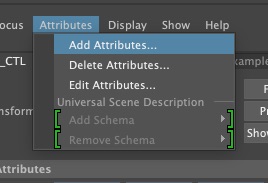
In the Attribute Editor, open Attributes > Add Attributes.
Set Long Name to bottango_rotateZ_min, choose Float, leave the attribute Keyable, and click Add.
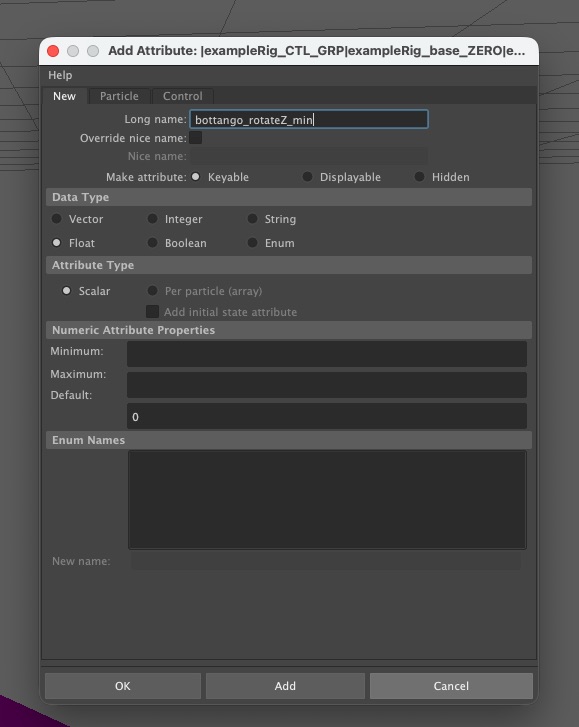
Add a second Float attribute named bottango_rotateZ_max the same way.
Under Extra Attributes in the Attribute Editor, set the new minimum attribute’s value to -45 and maximum attribute’s value to 45.
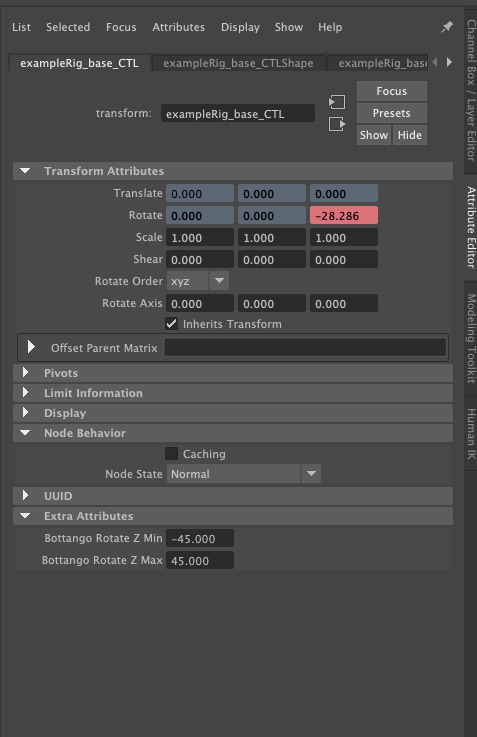
The exampleRig scene already has this setup on exampleRig_base_CTL.
Use the same units for the range attributes as for the exported channel values. If your rotation uses degrees, enter degrees; if you change to radians, update the range attributes too. Translation ranges use the scene’s distance units.
These attributes do not follow Maya’s native transform limits. Update them manually whenever your intended range or units change.
The Bottango attributes must be on the same node as the animated channel. Maya adds attributes to the selected node, which may differ from the tab displayed in the Attribute Editor.
If your source animated channel’s range matches the range of motion of the destination in Bottango, the animated values will match throughout the curve. For example, if your source channel min and max are defined as -90 and +90 degrees, and you map the imported track to a joint in Bottango with the same range of offsets (-90 to +90), the joint’s angle in Bottango will match the channel’s angle in Maya at each step of the animation. A value 25% through the range is -45 degrees in both the source animation and Bottango.
If, however, the ranges do not match, the values will be proportional. To continue the example, if your source channel min and max are defined as -90 and +90 degrees, and you map the imported track to a joint in Bottango with a different range of offsets (-45 to +45), the imported animation will be scaled to the range of motion of the mapped Bottango target, changing the amplitude of the motion. A value 25% through the range is -45 degrees in the source animation but will be -22.5 degrees in Bottango.
If you want to preserve the source values when the ranges differ, you can tag the channel in Maya with an absolute tag instead of min/max range tags.
To enable it, add a keyable, unkeyed Boolean named bottango_<channelName>_absolute to the animated node and turn it on. For rotateZ, use bottango_rotateZ_absolute. While on, min/max attributes are ignored and not needed. Turning it off or removing it requires the min/max setup again.
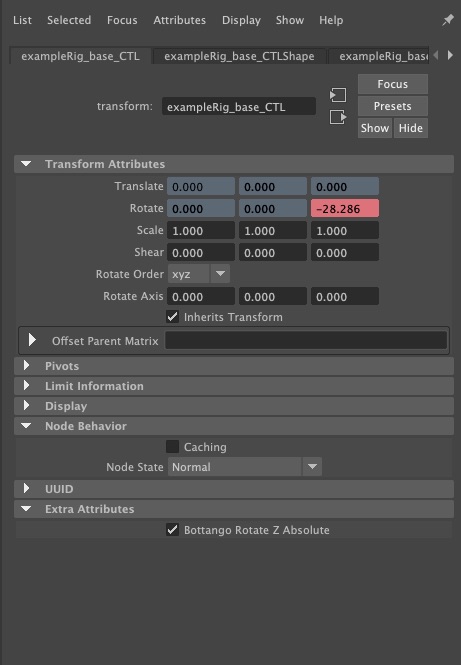
Take note that destination limits still apply and can change motion that the joint cannot reach. If a channel uses an absolute tag and the selected Bottango target cannot reach all the values in the exported file, the resulting motion will be limited to the target’s range.