
Expert Topic for experienced builders.
The scene was saved in Maya 2027. It uses 30fps, with an export range of frames 1–300. Select exampleRig_base_CTL to inspect its rotateZ curve and the two Bottango range attributes under Extra Attributes in the Attribute Editor. The middle and tip controls provide three more prepared rotation channels.
The Bottango project has its parts and joints set up, ready to accept the example animation import. Open it to see what the destination project can look like before importing.
The steps below may change your source animation file.
Bottango currently uses 30fps for imported animation, so your scene needs to use the same frame rate.
30 fps.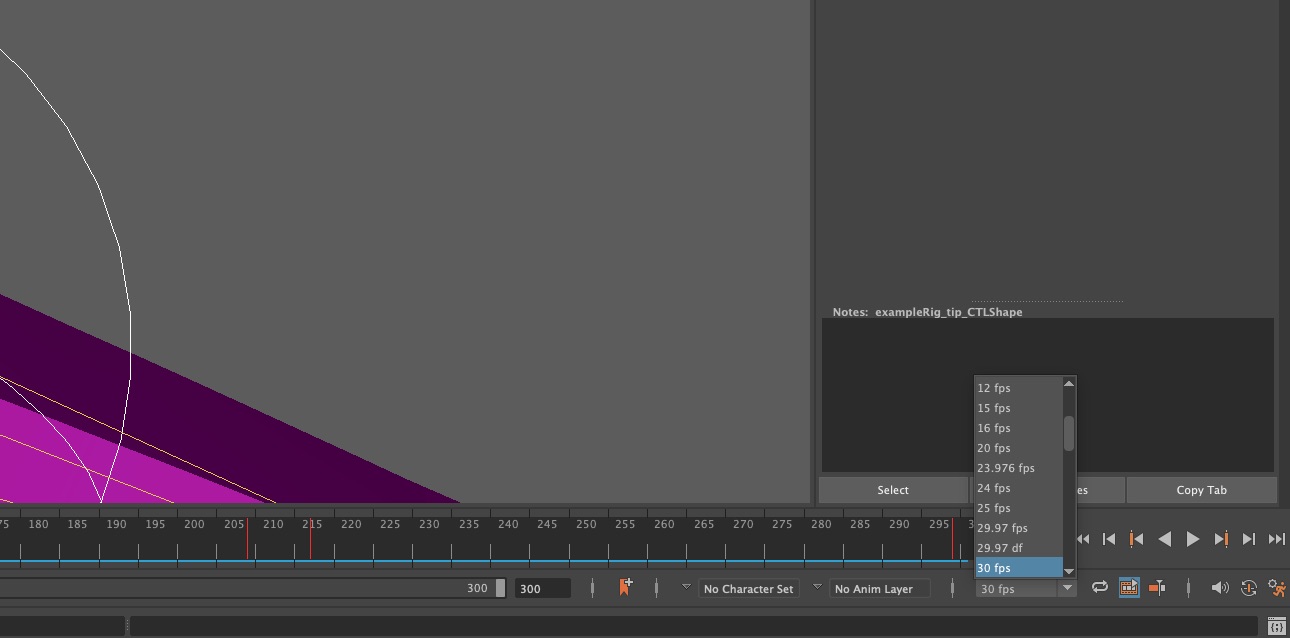
You can also set this in Windows > Settings/Preferences > Preferences, under Settings > Working Units > Time.
Bottango imports explicit keys and curves on attributes; it does not recreate or evaluate the Maya scene. Motion you see may be driven, blended, or extrapolated rather than directly keyed on the attribute you want to export.
Bake results from systems such as IK, constraints, driven keys, animation layers, or Time Editor / Trax onto the intended attributes. Include any motion from Cycle or other nonconstant pre/post infinity behavior as explicit keys across the export range. A restricted export can lose infinity motion without an import warning. Even a constant value needs an explicit key inside the range.
An attribute whose direct curve already contains the intended motion does not need baking. When baking is needed, choose the method appropriate to your rig and compare the resulting curves and playback with your source. This happens before export; the ATOM export settings later leave Baked Animation off.
Bottango aims to import the authored keys and tangent handles that define a curve. Weighted, Fixed tangents make the ATOM export include explicit handle information that Bottango can read, without needing to reproduce Maya’s tangent calculations.
Prepare all curves you intend to export with:
The next two sections give the steps to make these changes in order: first snap key times to whole frames, then enable weighting and set the tangents to Fixed.
Select the intended keys in the Graph Editor and open the Edit menu’s Snap options.
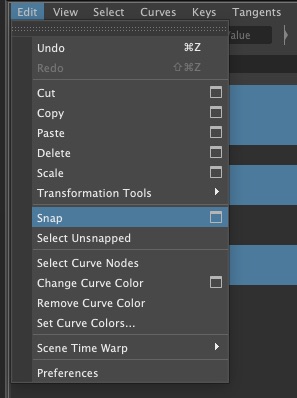
Set Snap to Times and Snap times to a multiple of to 1.
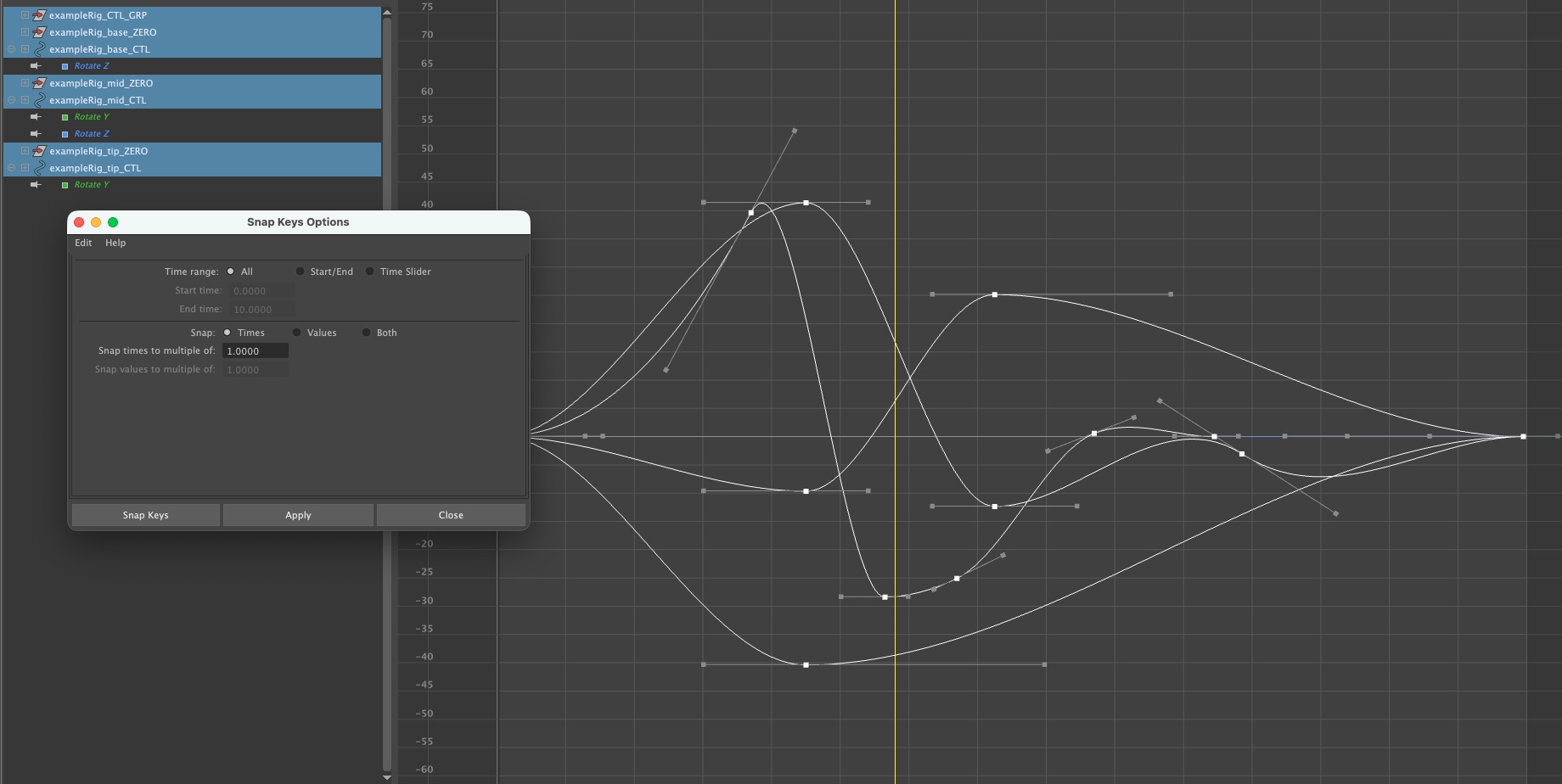
Apply, then check the resulting key times and motion.
Select the curves you intend to export in the Graph Editor.
Choose Curves > Weighted Tangents to enable weighting on those curves.
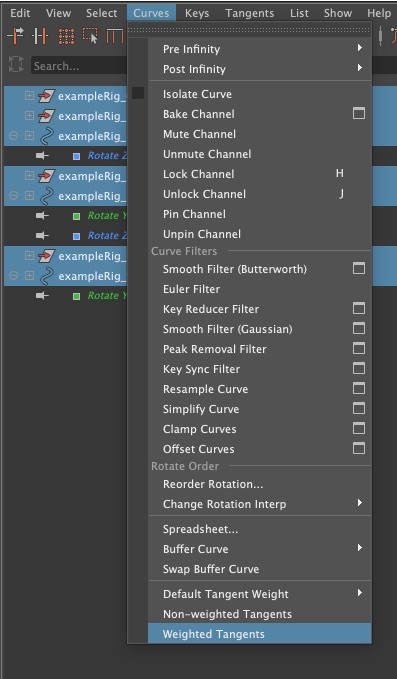
Select all their keys and choose Tangents > Fixed.
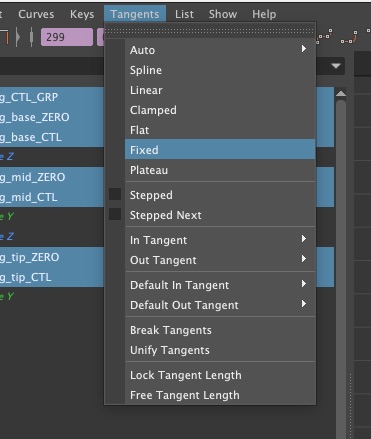
Inspect the curves and play the animation to check the result.
After you export the ATOM file and import it into Bottango, you will be given an import log. It will tell you whether each channel’s data is prepared as expected. If adjustments are needed, the log will recommend actions to take for each channel. If Bottango can import the data by making adjustments that affect the curves, the log will include warnings explaining their impact.
Next, you will set up the channels for Bottango to put important metadata into the exported ATOM file.