
Expert Topic for experienced builders.
Before exporting, prepare the curves and add Bottango attributes to the channels you want to include. Save your prepared scene.
Hierarchy > Below includes the selected node and its descendants in the Outliner. Select the root of your prepared control hierarchy; in the exampleRig scene, this is exampleRig_CTL_GRP.
Static Values includes the Bottango attributes alongside your animation curves. Leave Baked Animation off so the exporter writes the curves you prepared instead of sampling the animation during export.
File > ATOM > Export Animation.Time Range: All to include all keys..atom file.| Setting | Value |
|---|---|
| Hierarchy | Below |
| Channels | All Keyable |
| Time Range | All |
| Include → Static Values | On |
| Include → Baked Animation | Off |
| Include → Animation Layers | Off |
| Include → Set Driven Keys | Off |
| Include → Constraints | Off |
| Include → History | Off |
| Include → Control points | Off |
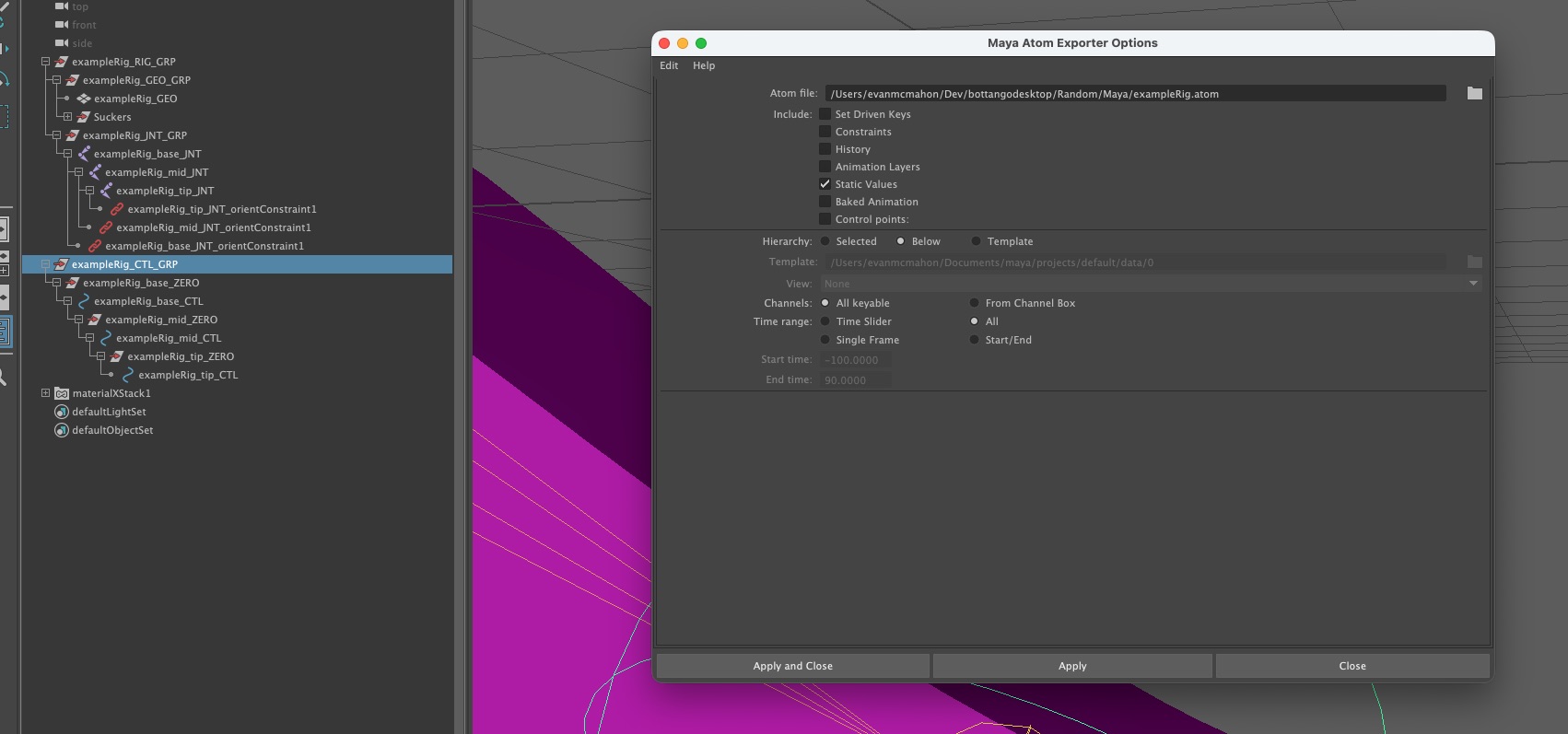
All Keyable includes your channels and Bottango attributes. Channels without Bottango attributes are ignored during import.
To export part of an animation, change Time Range to Start/End and enter whole-frame start and end bounds. This exports keys inside that range, but does not add keys at its boundaries. For example, a curve keyed at frames 20 and 100 can move throughout frames 30–90 yet have no keys in that export.
Where either boundary cuts through a moving curve segment, insert a key at that exact frame while preserving the curve’s shape:
Keys > Insert Keys.Preserve Tangent Type off so inserting keys preserves the curve’s shape.Compare the exported clip with your source, including its beginning and end. Bottango holds the first exported value before its first key and the last value after its last key, so check these holds are intentional.
Choose the ATOM file in Bottango, review the import log, and assign the accepted channels to parts in your project. Preview the motion before finishing. If the log calls for source changes, adjust the Maya file and export again; each import creates a new Bottango animation.