
Essential Topic for learning Bottango.
In Bottango a part is any 3D object you create to represent your robot. A part could be a piece of structure that makes up the bones of your virtual robot, a joint that rotates or moves, or it could be a motor that you animate with.
In order to try selecting parts, we first need to create a few parts. Don’t worry too much about what these parts are and what they do; we’ll learn more about them in later sections.
Click “Create Part” to create your first structure:
This will cause the “Create a New Part” window to appear:

Click “Cube” to create a cube structure.
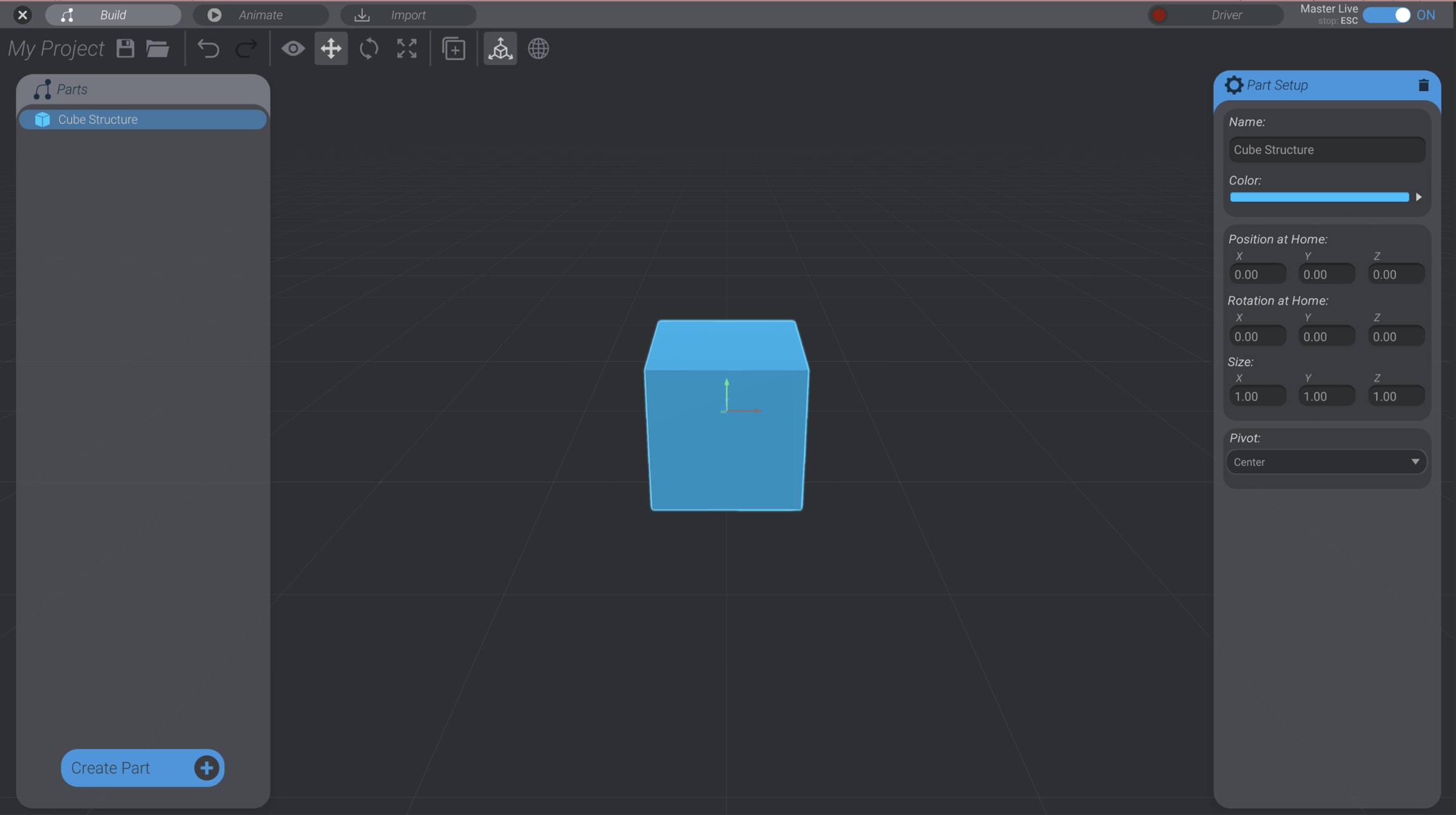
This will create a cube structure and add it to the project. The new cube structure is automatically selected.
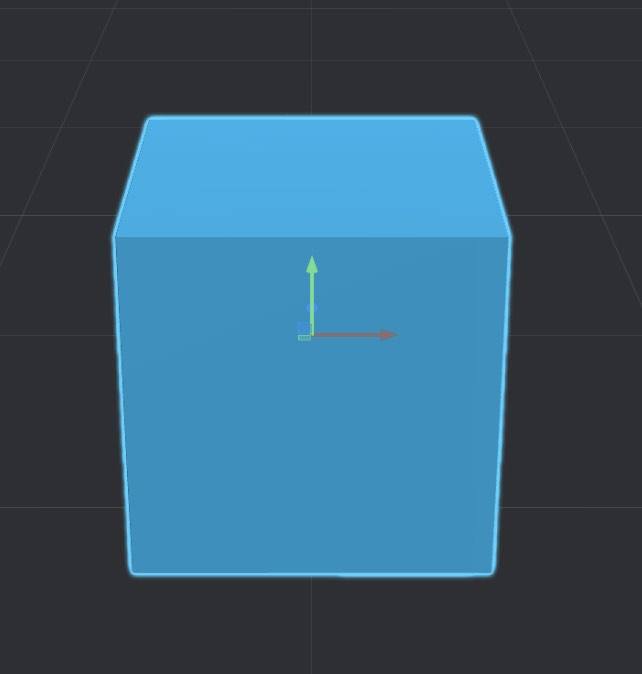
A selected part has a transformation handle to move it, which looks like a series of arrows. If for some reason you are missing the transformation handle, press the W key to select the “move tool.”
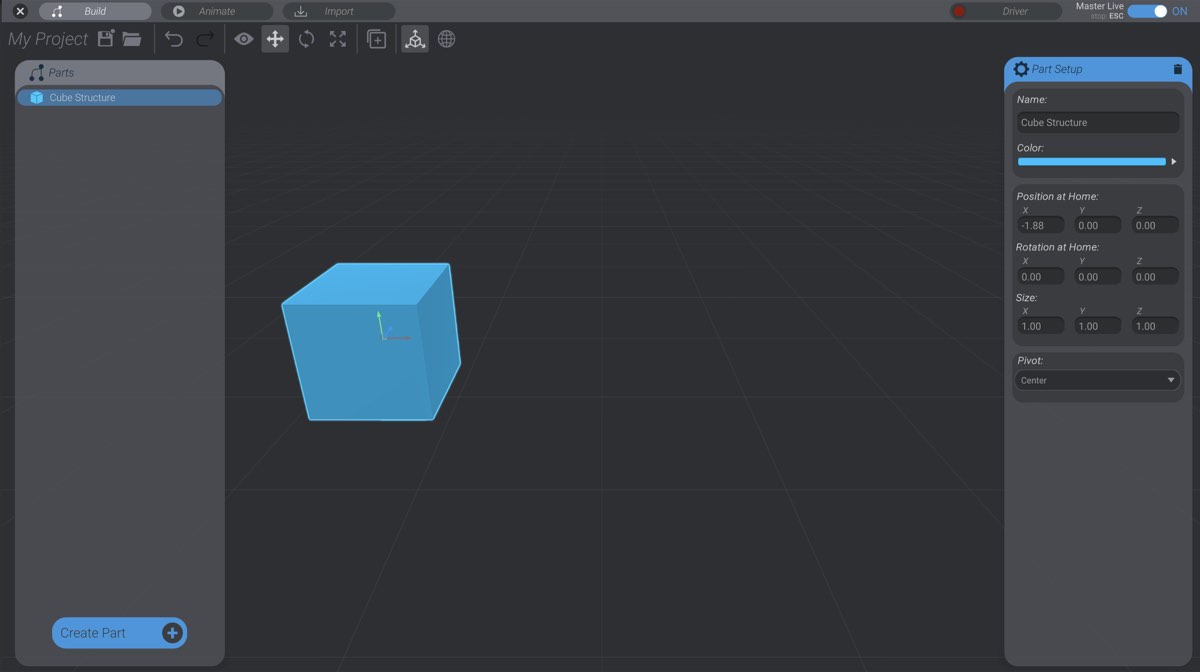
Click and drag on the red X axis handle arrow to move the created cube over to the left a bit.
The cube will now be in a new position.
Click outside the cube on the background grid to deselect the cube. You will know you have deselected the cube when the transformation handle and part setup window disappear.
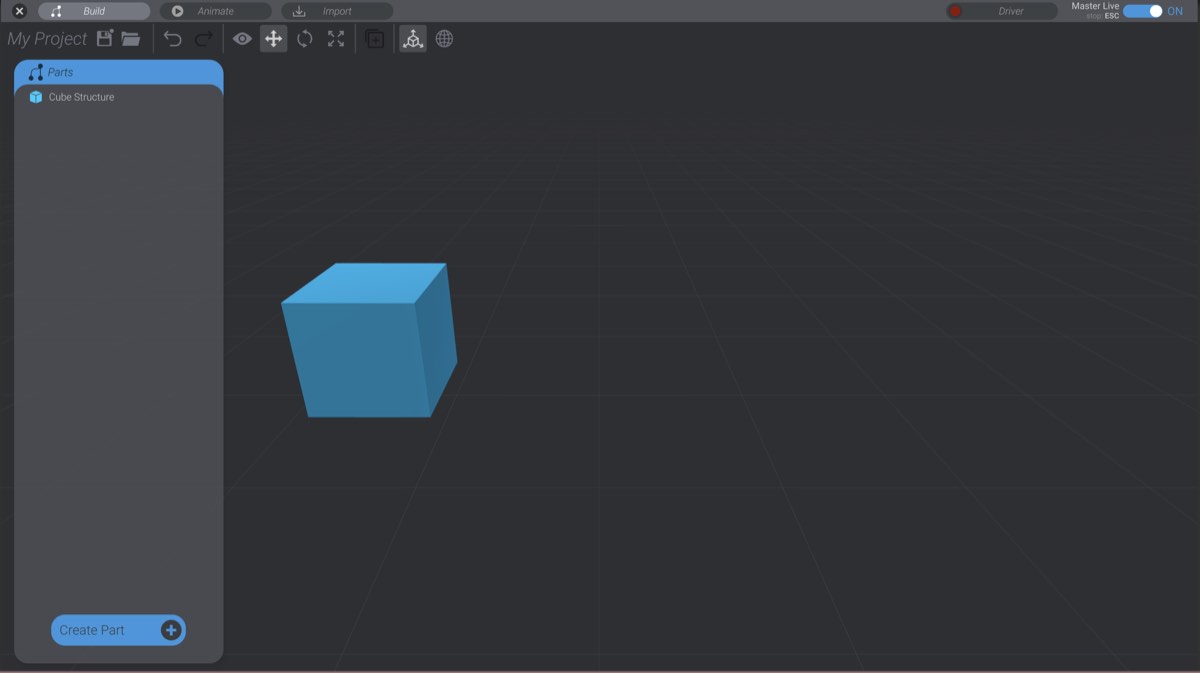
Repeat steps 1 and 2 to create a second cube.
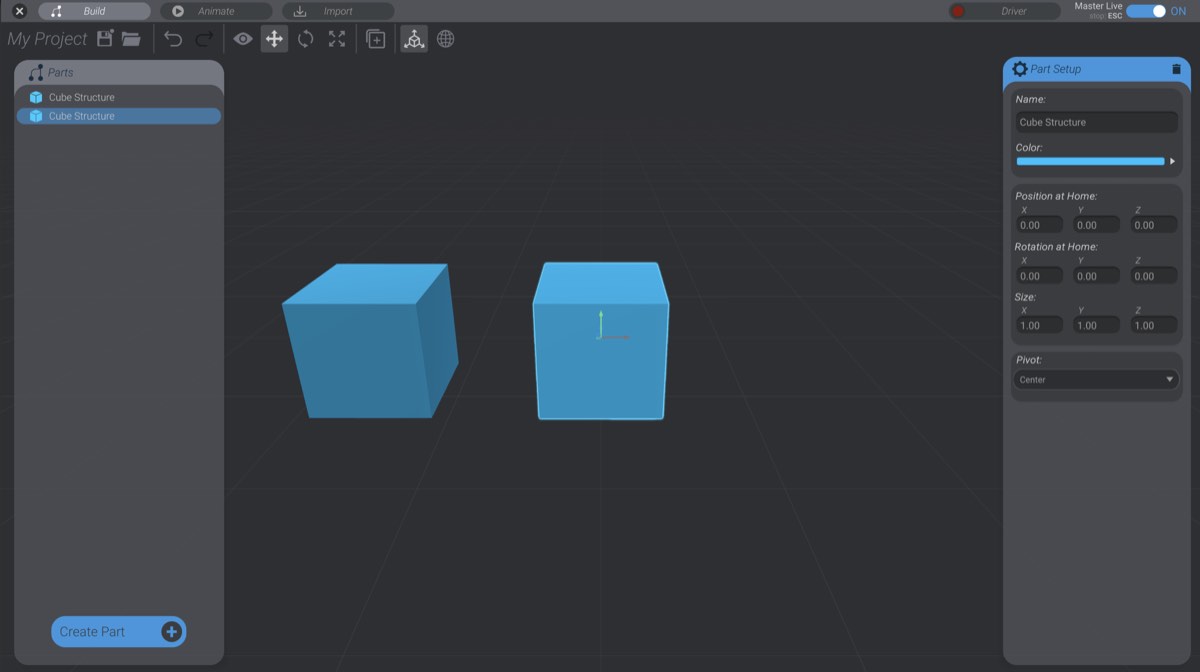
Click and drag a box around both cubes to select both.
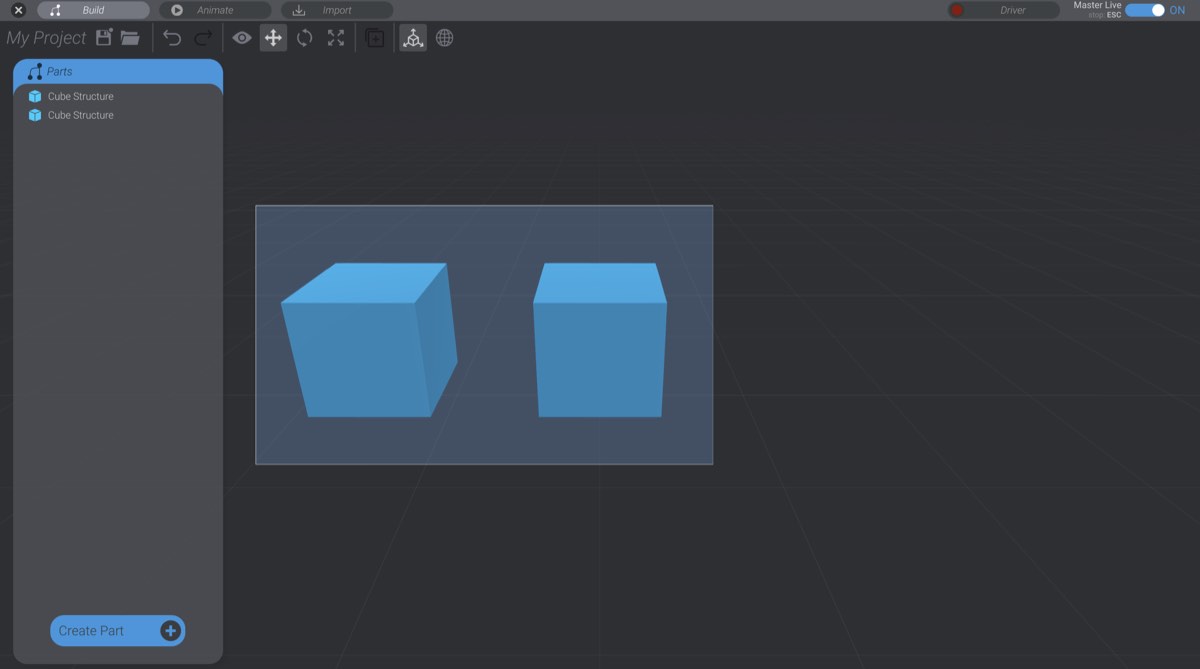
Both cubes are now selected. When more than one part is selected, you will not see the parts configuration window. You can only configure one part at a time. However, you can still move, rotate, and change the size of multiple parts if you have multiple selected.
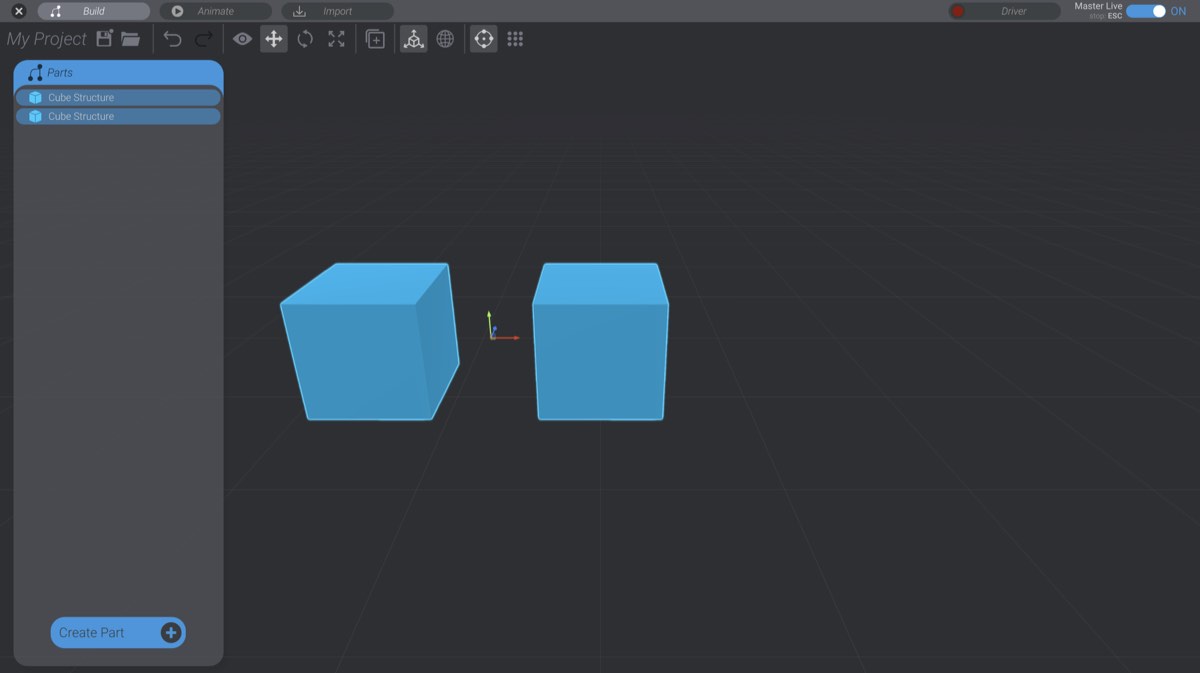
Every part in your project will show up in the Parts Menu. You can use the menu to select and deselect parts.
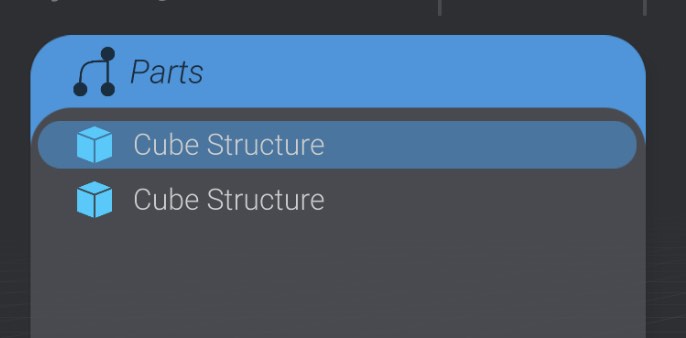
Selection of parts in the Parts Menu follows the same rules as most file browsers. You can hold down shift to select or deselect in a range. You can hold down control/command to add and remove from a selection. Click in the parts menu outside of any part to deselect all selected parts.