
Essential Topic for learning Bottango.
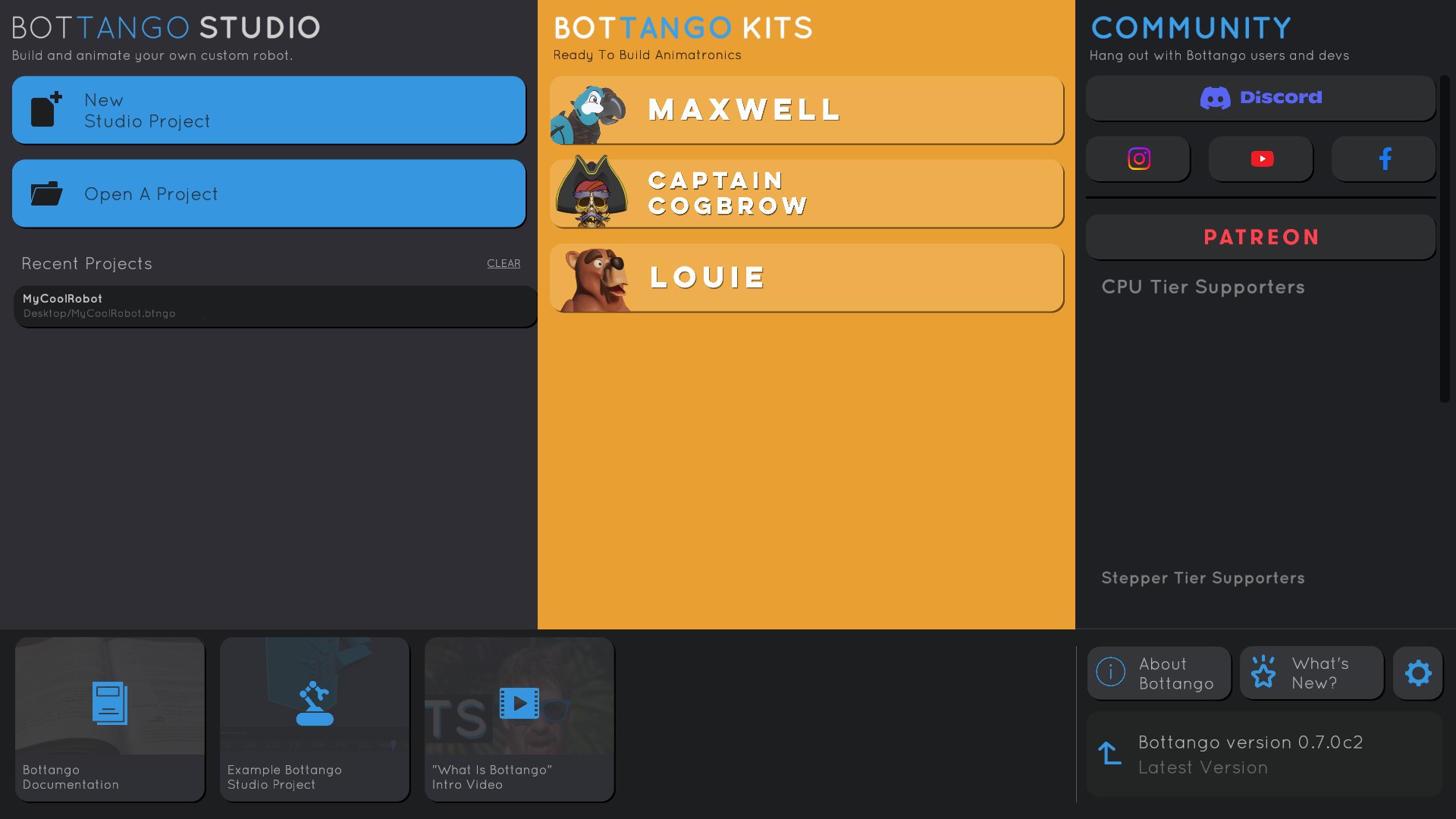
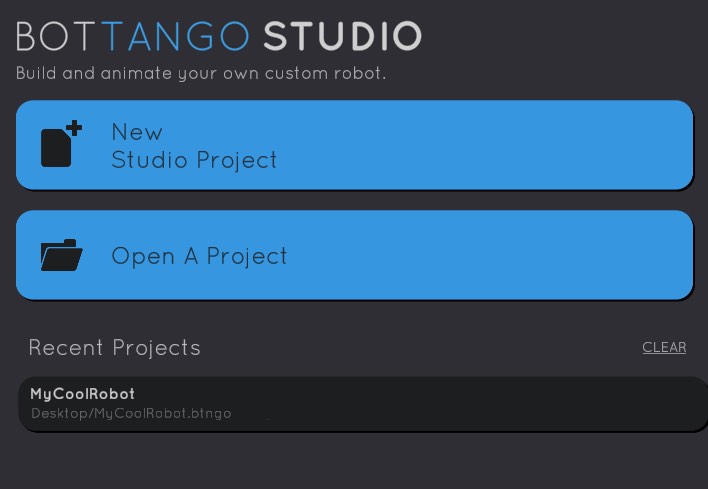
The leftmost part of the home screen is for “Bottango Studio:” the suite of tools that lets you build your own custom project to animate a robotic build of your own design. In Bottango Studio, you create a new Bottango project and animate your own robot. For the purposes of this documentation, all the functionality and features are contained in the leftmost section.
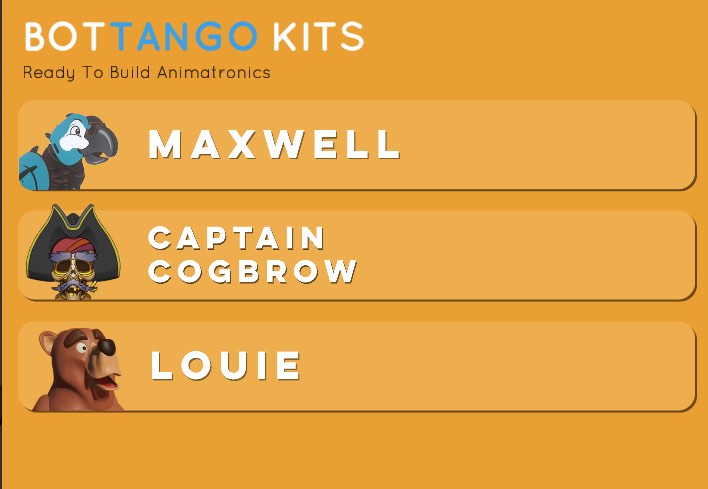
The middle section is functionality associated with Bottango’s “animatronic in a box” kits. Functionality in this section allows you to access interactive assembly instructions for Bottango’s kits, as well as access pre-made animation template projects for the kits.
If you are using a Bottango animatronic kit, you will have received specialized instructions and tutorials. The documentation here is focused around teaching you how to create a Bottango Studio project for your own custom builds, as well as advanced functionality of the software.
You can get more information on Bottango’s hardware and kits here: bottango.com/pages/kits.
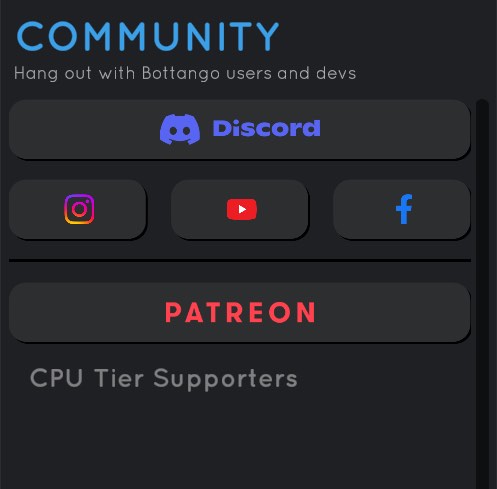
On the right side of the screen you can access various community resources, to interact with and learn from other Bottango users.
Bottango’s community is most active on its Discord server, which you can access with the Discord button in the app, or directly here: discord.gg/wyhSMQb.
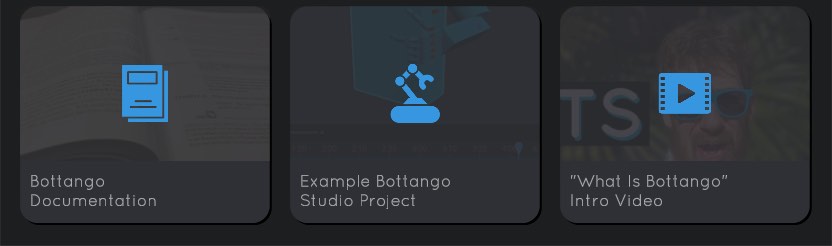
At the bottom of the screen are some helpful links to learn more about Bottango, view an example project, etc.
The example project is a project created by Bottango that shows off its basic functionality. You can also look at the template projects for Bottango’s kits to explore an already set-up and ready-to-animate project as an example, by clicking through to one of the middle options such as “Maxwell” or “Captain Cogbrow.”
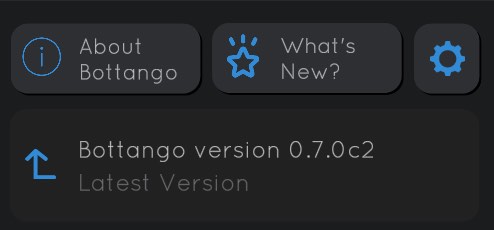
If you have the latest version of Bottango, the app will let you know in the bottom right corner.
If there is an update available, you will be notified. Click the button to download the latest version available.
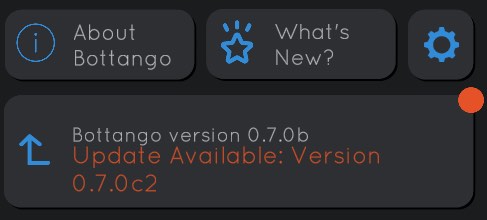
In the Bottango community resources, occasionally preview versions of updates to Bottango are made available to community members. If you have a preview version, be sure to check if there’s an update available from the Bottango Website or watch the community resource. Preview versions do not monitor for released updates.
In the left side “Bottango Studio” section, there are options to create a new project, open an existing project, as well as a list of your most recently opened projects. For the next sections of this documentation, we’ll look at a new empty Bottango Studio project.
Click “New Studio Project”
Once you click “New Studio Project” you’ll be taken to a new empty Bottango Studio project.