
Beginner Topic used frequently in Bottango workflows.
While in configuration mode, you can drive custom events to test them. If they are live, and their associated driver is live, events will be sent. To try out the event, you:
Custom events are animatable just like motors and joints. To add a custom event to an animation in the Animate view, you can either use the “add track” button, or just start manipulating the custom event (it will automatically add a new track to the animation if one doesn’t exist).
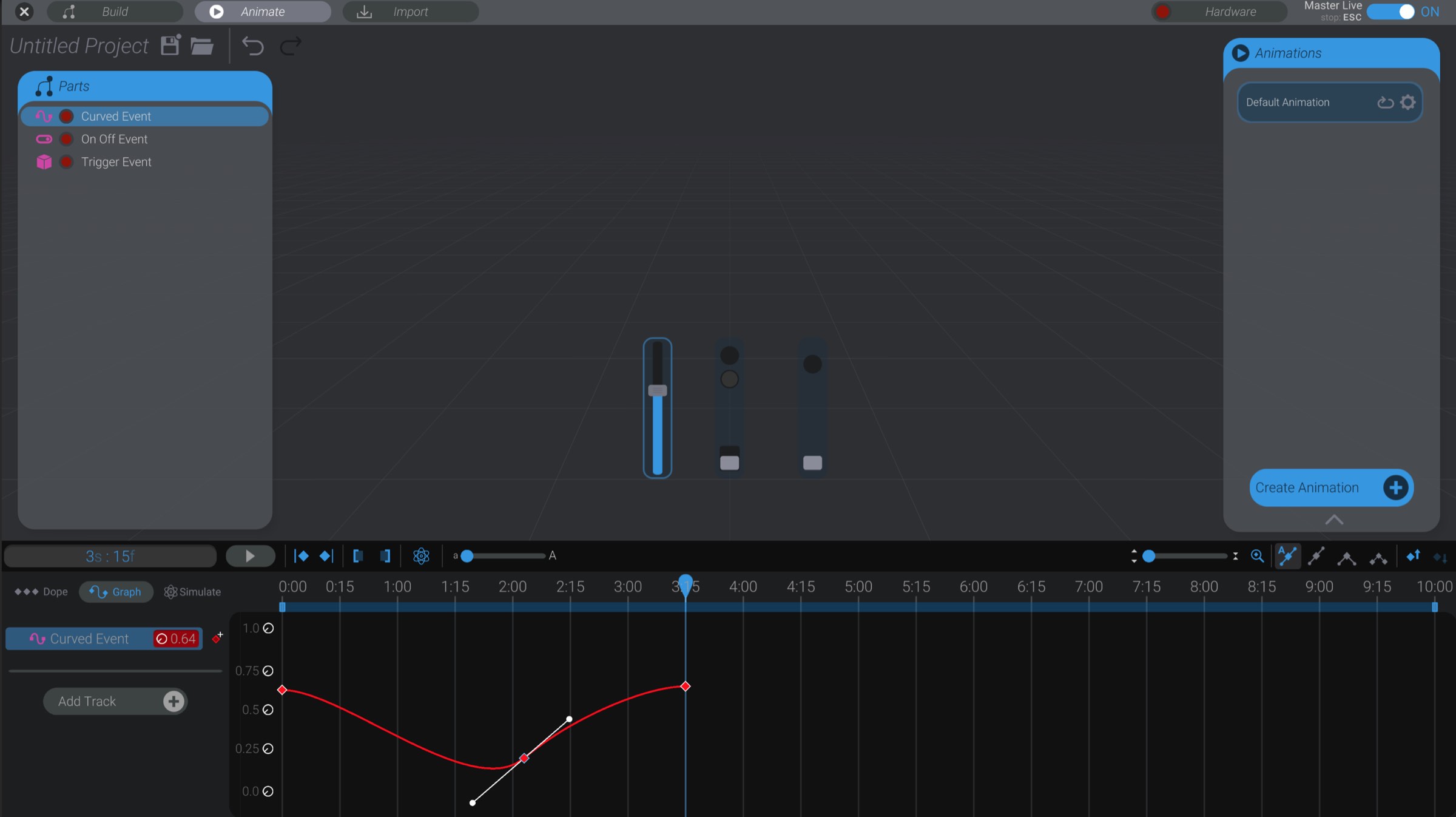
For example, here I have dragged the slider of the curved event, and it keyframes itself on the animation in the same way that moving a joint updates and adds keyframes for motors:
You can do the same thing with on/off events and trigger events. Press the switch to change the state of an on/off event, or press the button to add a trigger. Because they do not have a curve, on/off and trigger events will not show up in the graph view. You can only see on/off event keyframes and trigger keyframes in the dope sheet:
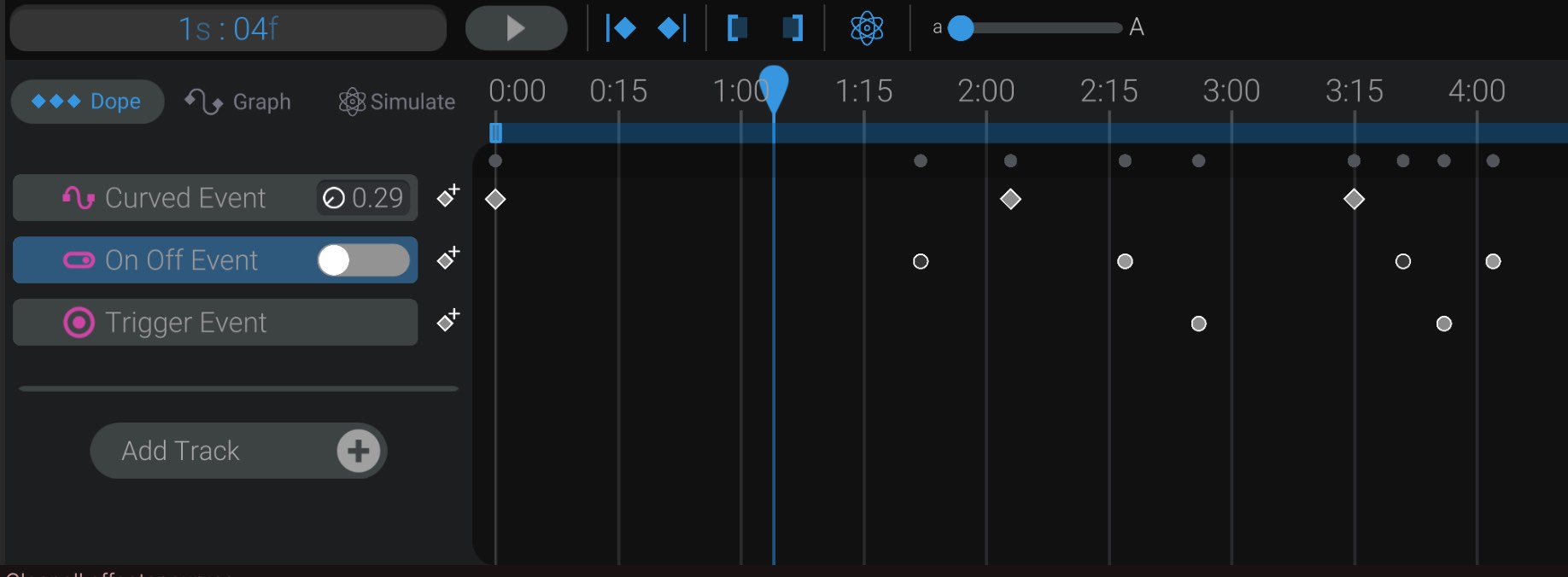
On/off and trigger keyframes are shown as circles, instead of diamonds. As well, you can tell if an on/off keyframe represents on or off by its color. Darker on/off keyframes represent off, and the lighter ones represent on.
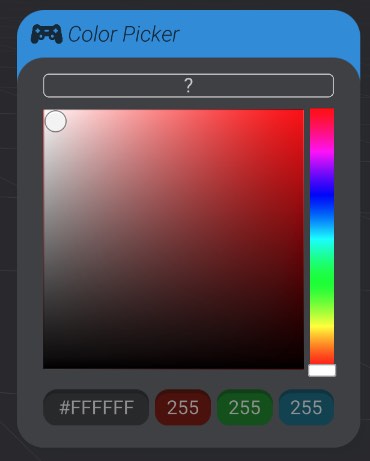
When you select a color custom event, a color picker will show up in the animation view:
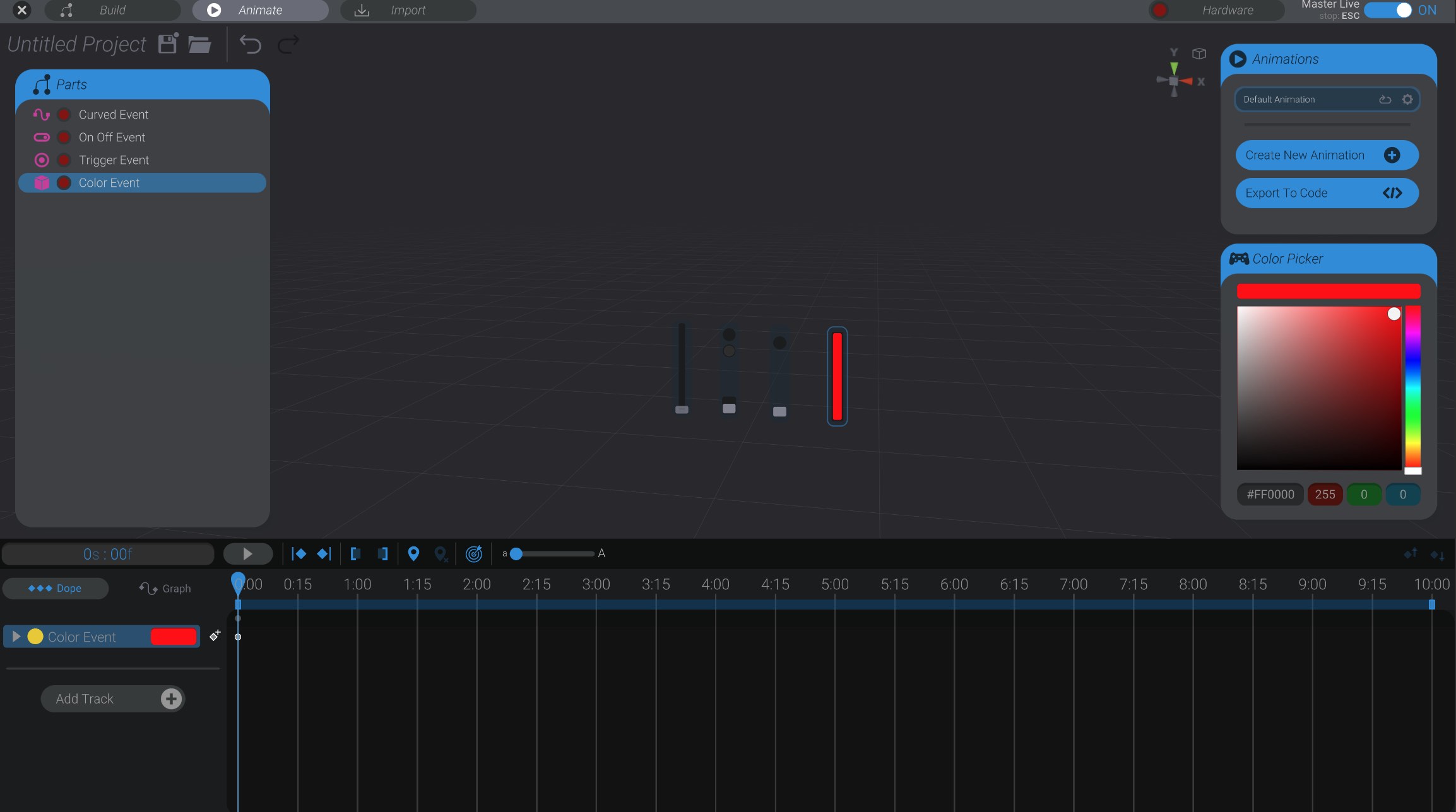
You can set the color for the selected event at the current frame via a hue saturation value control, with a hex code, or directly setting the red, green, or blue value (between 0 and 255). When you set a color, it will add or modify a keyframe at the selected time on the animation. As you add more keyframes, you’ll see the translation of color for that event over time in the animation panel.
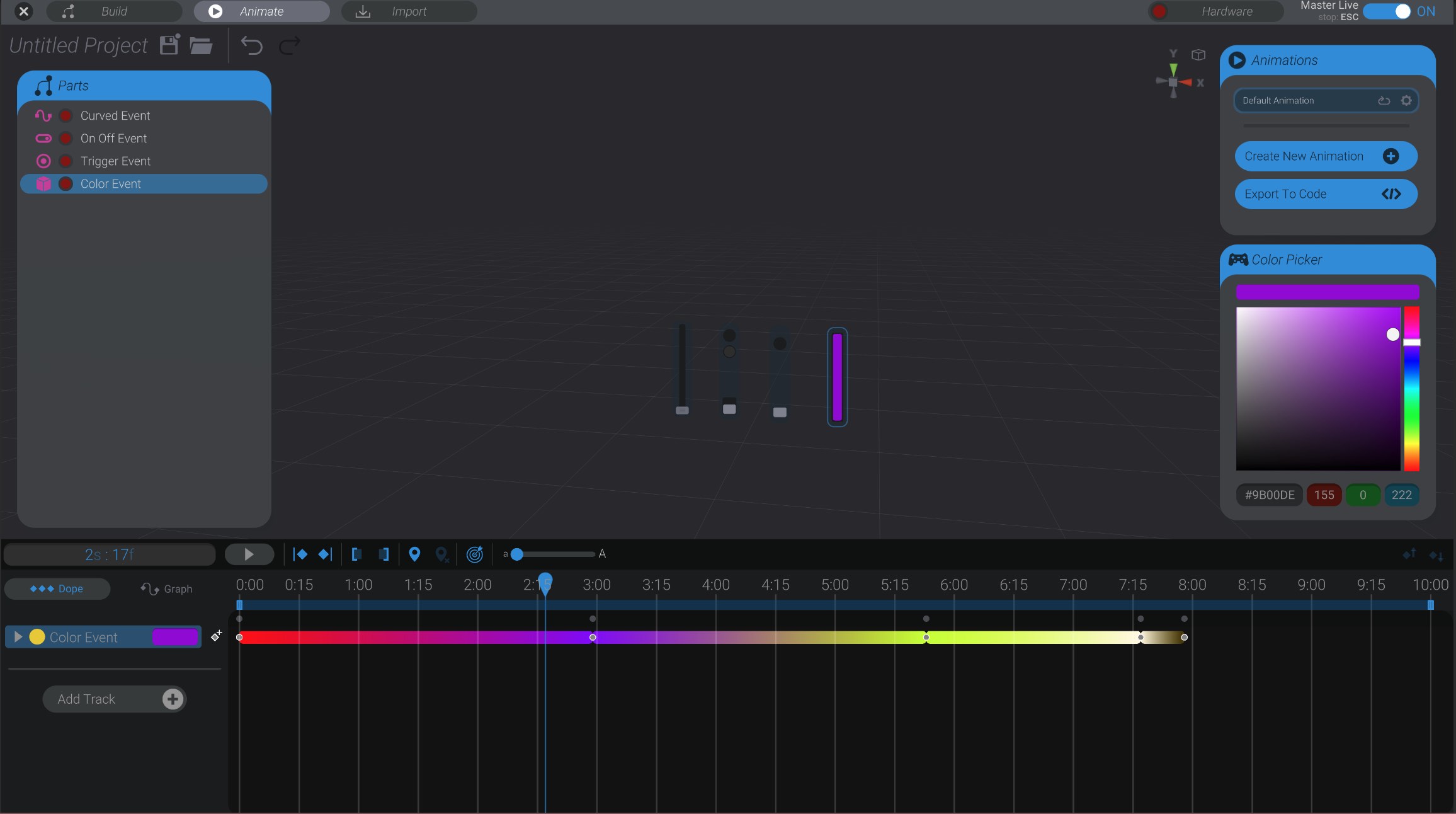
You can select and modify multiple color events at once. However, if more than one color event is selected, and they do not have the same color at the selected frame, the color picker will show this state with a “?” color.
You can drag, copy / paste, and manipulate custom event keyframes the same way you can other keyframes in Bottango.