Essential Topic for learning Bottango.
We’ll create joints on this page to continue building on the simple robot we started building in the previous section.
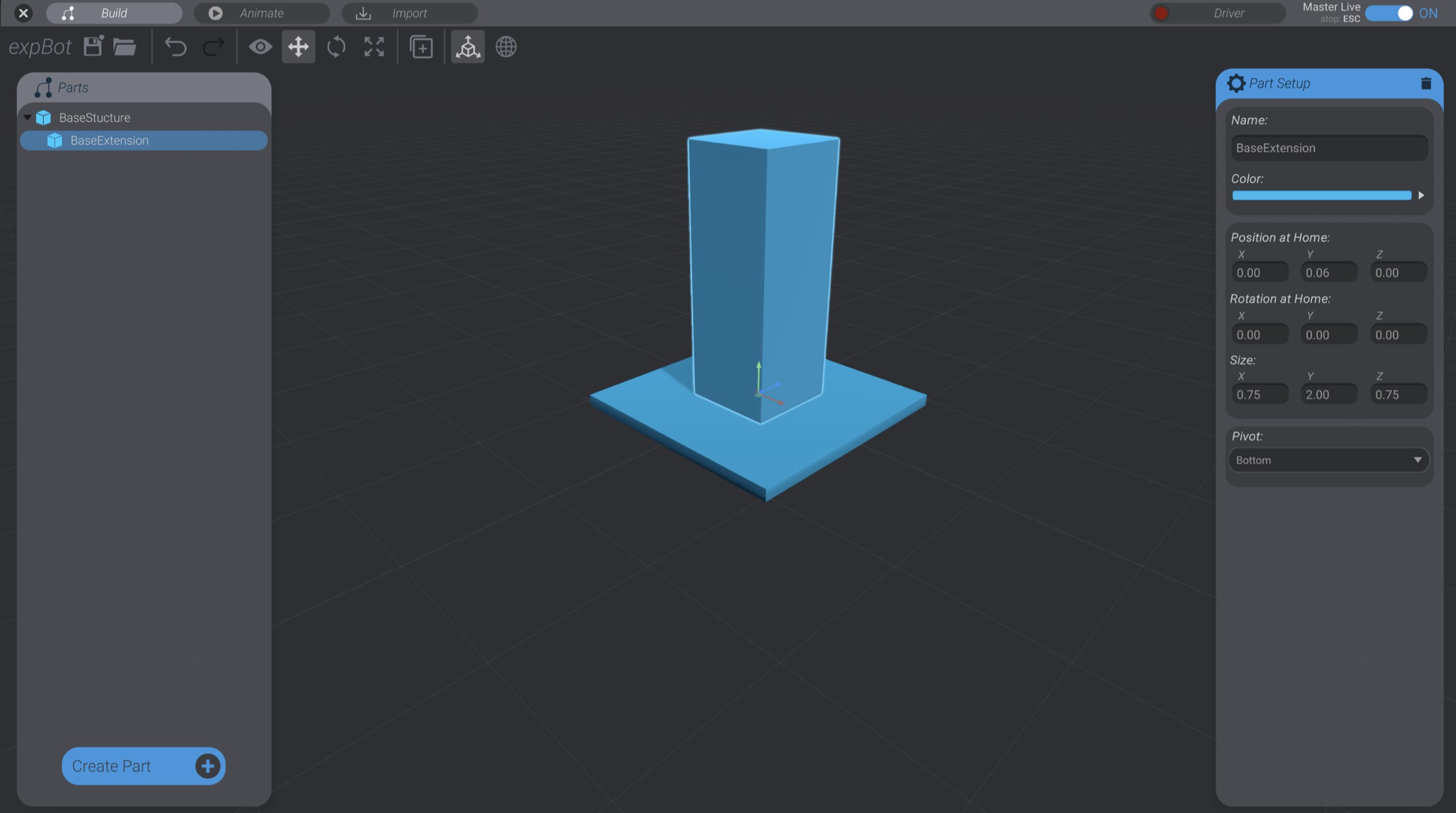
In our example robot we’ve built so far, we have the long, tall BaseExtension part as a child of the flat BaseStructure part. We want to define a point of articulation in our robot so that BaseExtension can rotate. Eventually we’ll animate that movement and connect it to a motor. But for now, we just want to define the point of articulation and configure that. We make that definition with a joint.
Select BaseExtension if it is not already selected.
Click Create Part.
You’ll see two joint options: “New Joint” and “Insert Joint.” Click Insert Joint.
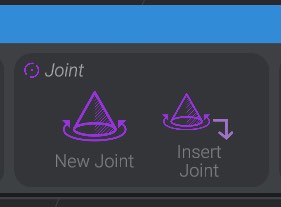
When you click “Insert Joint” with a part selected, you will create a new joint and immediately reparent the selected part as a child of that new joint.
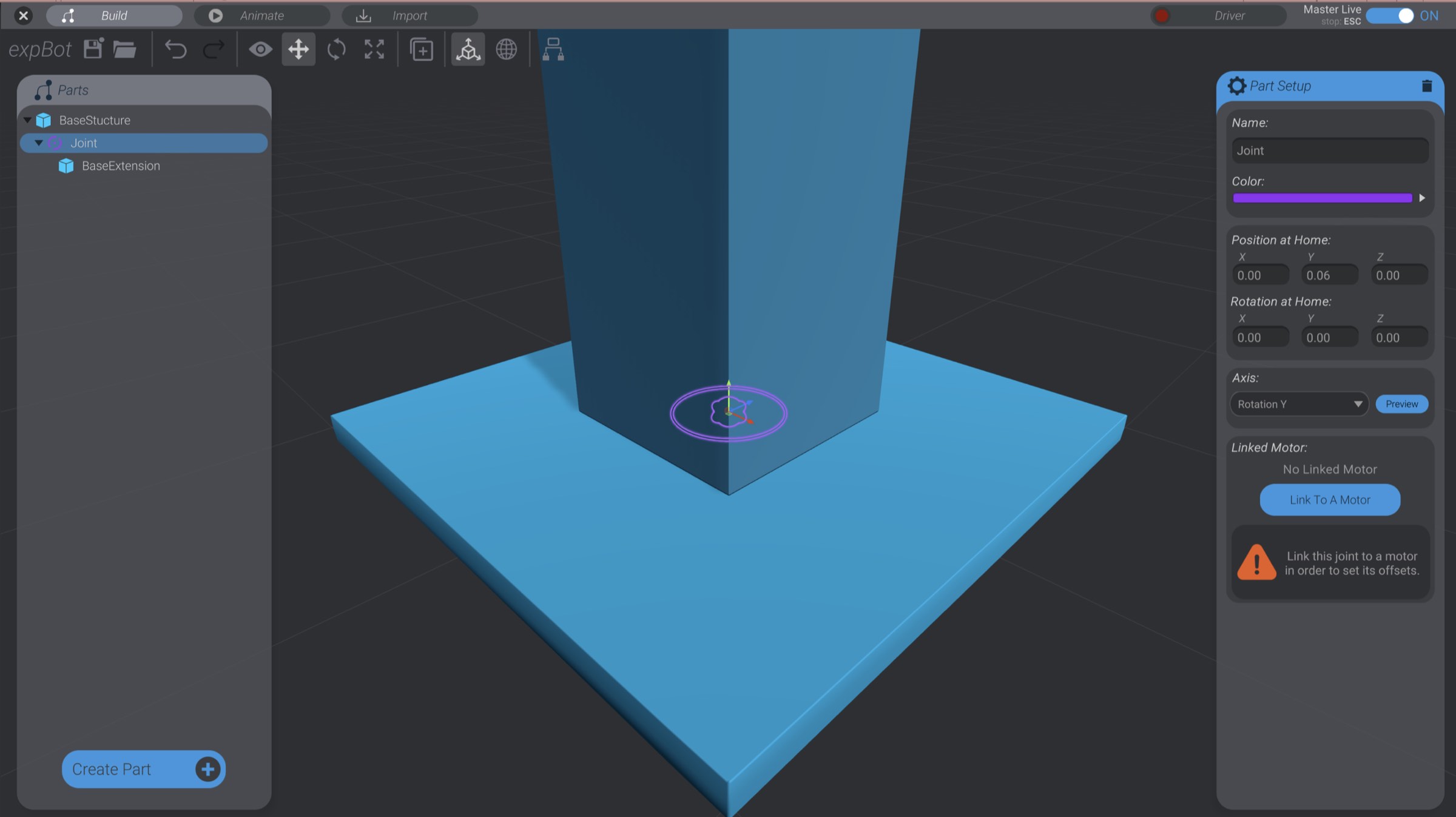
You can see in the above image that BaseExtension is now the child of a joint, instead of BaseStructure.

Joints can be parents of other parts just like structures can be parents of other parts. Remember that when a parent moves or rotates, all of its children move or rotate. Unlike structures that can’t move on their own in an animation, this joint we’ve just created can be animated and linked to a motor. We’ll get to that eventually in Linking Joints To Motors, but for now, we just want to get the parts and parent-child relationships of the robot built.
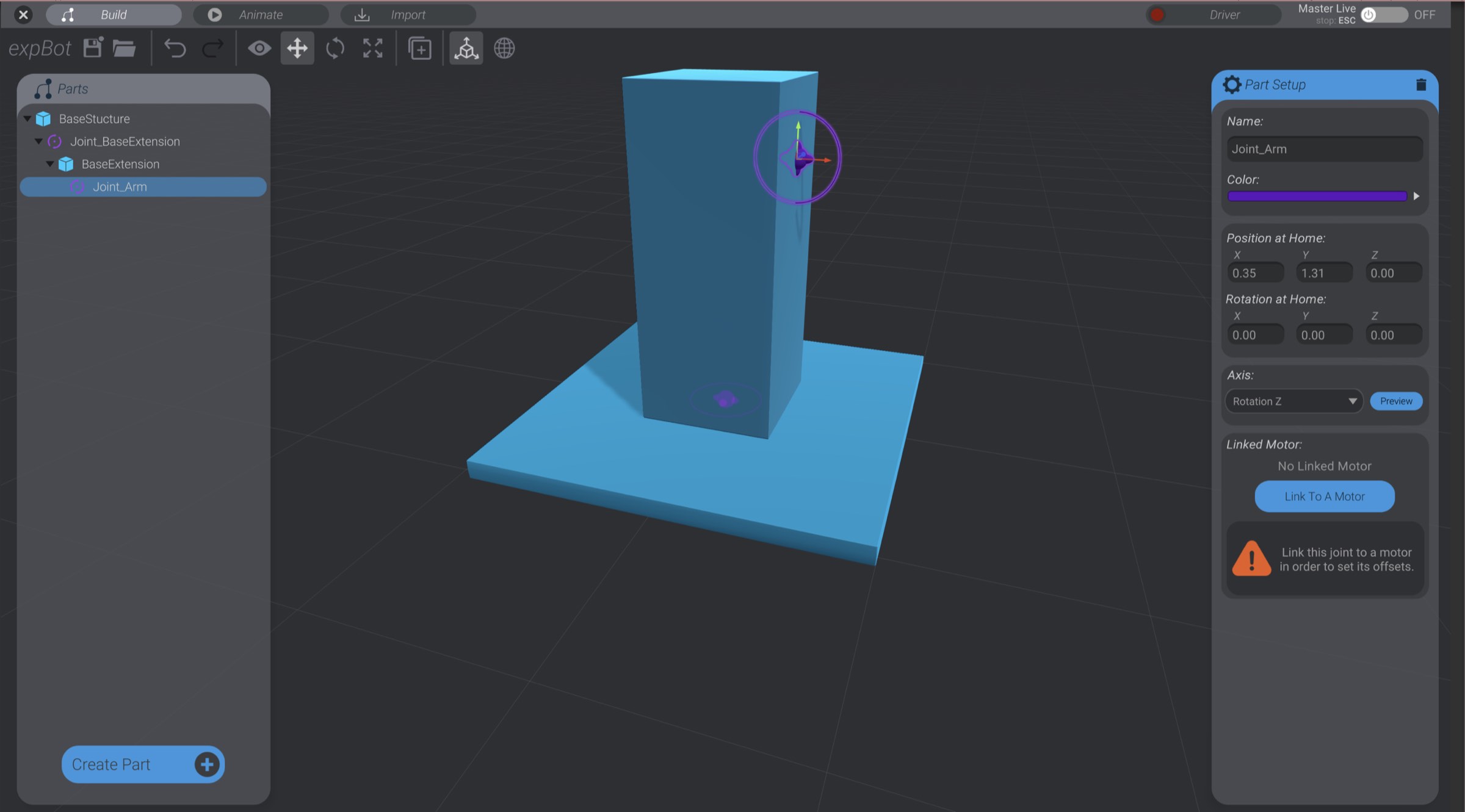
Now we’ll make the arm part of the robot that rises and falls. You can create joints, as we just did previously, by inserting via the create menu. Or you can create new empty joints, and then create new structures as the children of the joint:
Select BaseExtension if it is not already selected.
Click Create Part.
Click New Joint (instead of Insert Joint).
With BaseExtension selected, and clicking “New Joint” instead of “Insert Joint,” this will create a new, empty joint as a child of BaseExtension instead of inserting a joint as a parent. However, the joint is not in the right place.
Move the new joint to be at the top and side of BaseExtension.