
Advanced Topic Skip if you’re new, explore when you’re ready.
While animating and configuring your robot, Bottango sends numerous requests back and forth to the hardware driver. For testing and support purposes, or just to learn more about the inner workings of Bottango, you can view a log of the sent and received commands. Press the log button above the driver details to switch to the log view:
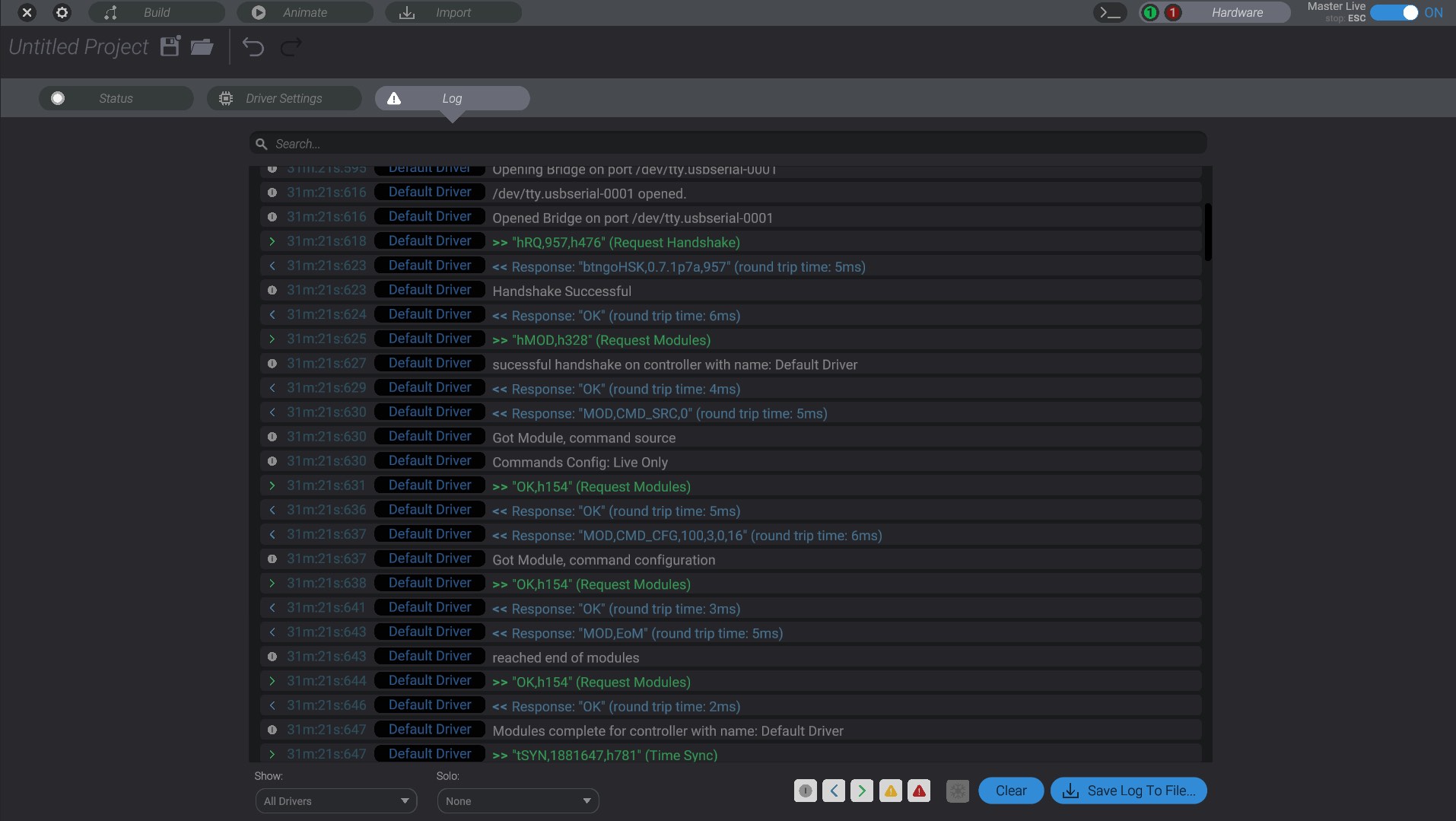
You can also access the log at any time by pressing the small >_ log button next to the hardware tab button at the top right of the screen, or by pressing the “~” key on your keyboard.
The in-app log is limited to the most recent 250 messages. However, you can export the most recent 10,000 messages to a text file by clicking the “Save Log to file…” button on the bottom right. You can clear the log as well.
You may want to drill down and find certain messages.
At the top of the log menu, you can search for specific text. Press enter to run the query, and press the “X” button to remove it.
On the bottom right you can select which drivers you want to show up in the log. You can also “solo” a specific driver so that its logs show highlighted, but still in context of other log entries.
Next to the clear button is a “freeze” button. This will stop any new log entries from showing up in the log while it is enabled. Once you turn freeze off, all received log entries while the log was frozen will be added back into the display.
Finally there are 5 log level filters. By default they are all enabled, but you can turn off any log level in the display. From left to right the items are: