
Expert Topic for experienced builders.
Modifying Bottango firmware, or even writing your own, is an awesome project! Bottango contains a handful of advanced settings that allow you to tailor the protocol of the desktop app to the needs of your hardware driver.
However, if you are just using the Bottango firmware as downloaded from the Bottango website, changing any of these settings likely will break compatibility between the Bottango app and your hardware.
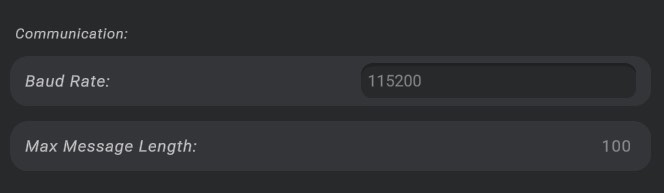
Here you can change the baud rate of communication between the app and your hardware. Note that the change needs to occur both here and in the Bottango firmware.
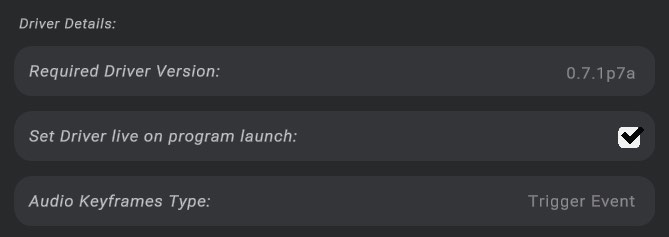
Required Driver Version informs you the version Bottango expects to see reported back as part of the initial handshake.
Set Driver Live on Program Launch allows you to select if this driver will try and open communication when you load the project, or if it will wait for you to manually turn it on.
Audio keyframe type is reported by the Bottango firmware depending on enabled functionality. Trigger events, the default, will fire a trigger event. Set Index is used for real-time audio playback via I2S on hardware. More information on I2S playback can be found in the later documentation pages.
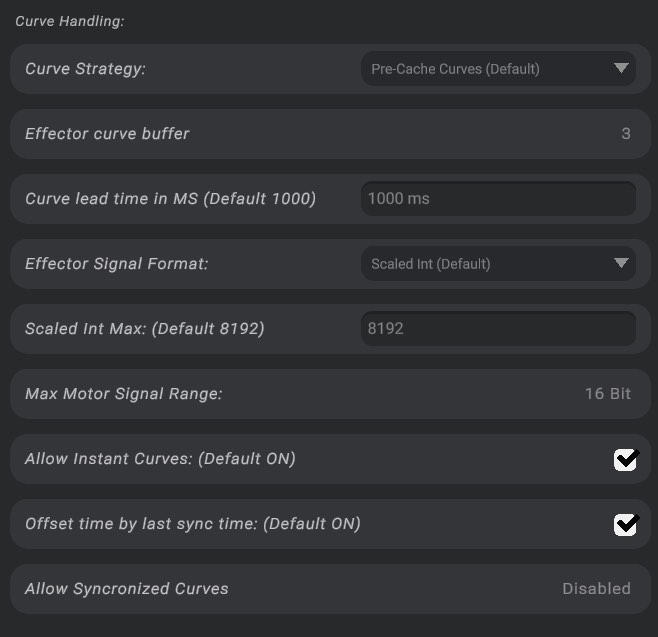
The Bottango firmware contains a large number of optimizations to make the performance of animations as error-free and as smooth as possible, on hardware as low-spec as an Arduino Uno R3. However, this makes the complexity of the outgoing commands a fair bit higher to process into animations. You can change the behavior of the outgoing commands for animations, and simplify it or optimize it for your hardware driver’s needs with these settings.
Curve Strategy contains the following options:
If you have selected pre-cached curves, the hardware driver will report how many curves per motor, and you can tune how long in milliseconds you want the curves to be pre-cached. If you have selected just-in-time values, you can select the target rate at which Bottango will attempt to send out evaluated positions. The just-in-time rate in practice will be hardware and serial speed dependent.
As well, with just in time values, you can add the option to include a timestamp to each signal in the data.
Effector Signal Format contains the following options:
Max motor signal range is reported by the Bottango firmware. An Arduino Uno R3 will allow 16-bit signal max values, while more modern hardware like an ESP32 allow 32-bit signal ranges.
Allow instant curves is an optimization that Bottango performs when Bottango would send out an animation curve that is 0 length and happens within 10 ms of now. In this case, Bottango sends out an instant curve using a different serial API command instead of the full curve metadata. Once the hardware driver receives the command, it is converted to a full curve and treated no differently; this is purely a function of compressing the size of the outgoing signal. You can disable this behavior with this option.
Offset time by last sync time is an optimization that Bottango performs to compress the desired time of an animation curve. Instead of sending the absolute time of the curve, all times transmitted are sent relative to the last time that “time sync” was performed between the Bottango app and the hardware driver. You can disable this behavior to send out absolute time only.
Allow Synchronized Curves will concatenate multiple curve commands together into a single command when appropriate.
All of the optimizations above are helpful in the full Bottango firmware, but if you want to write your own and don’t need these optimizations, there are simple settings I recommend. These settings are also very useful if you are exporting animation data using the Final Export step for your own custom processing needs.
Curve Strategy: Just In Time Values Only
Effector Signal Format: Effector Signal
Allow instant curves: Off
Offset time by last sync: Off
Allow Synchronized Curves: Off
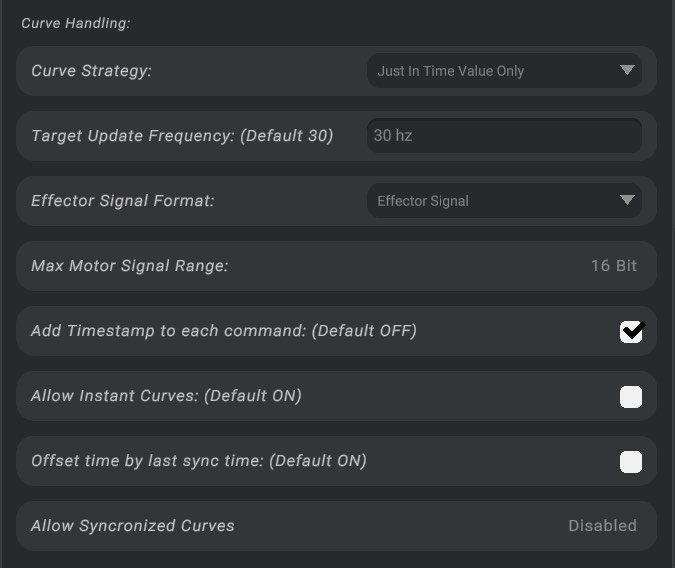
With these settings, instead of streaming out an optimized version of the keyframe data, Bottango will stream out just-in-time desired positions of each motor as you animate. Make good use of the log, the driver API docs, and the Bottango Discord community for help writing your own or modifying the firmware.