
Advanced Topic Skip if you’re new, explore when you’re ready.
In order to see the video being played in an animation, you need a video player in the project. Video players are 3D objects in the project just like structures, joints, and motors. Create a new video player in the project from the create panel after importing your video.
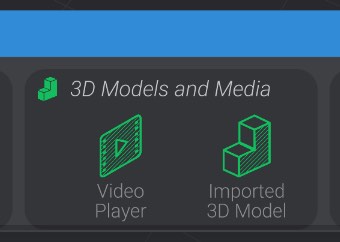
You can have as many video players in the project as you want, in case you want multiple videos playing, or multiple views of the same video.
A video player has two settings you can configure: its preferred video to play and its display type.
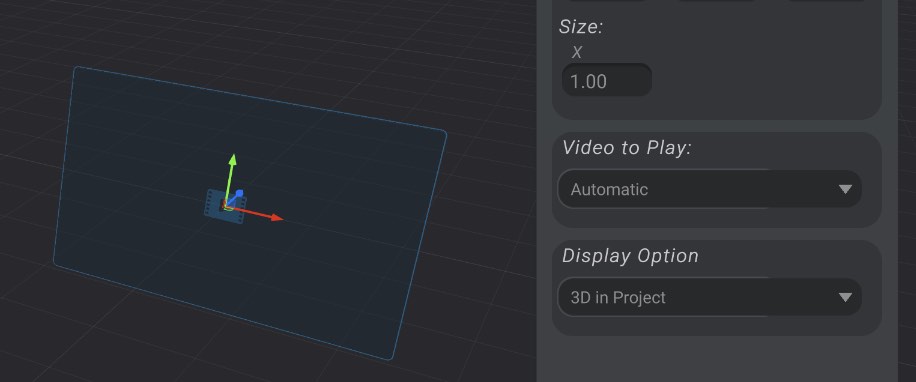
Display type currently has two options: 3D in project (default) and Flat in project. When 3D in project, as you move your camera around in the project, the video player is treated like a 3D object, and will be viewed from different angles.
However, if you select flat in project, the video player will always be flat and never rotated.
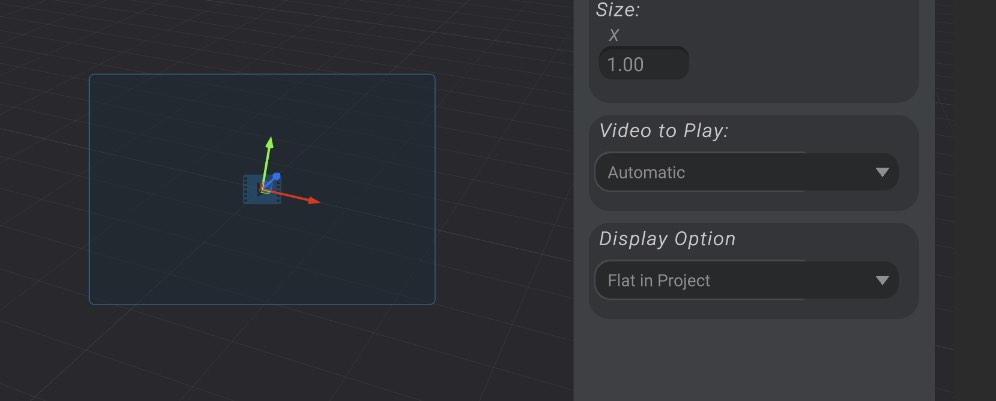
With the “Video to Play” setting, it is set to “Automatic” by default. In this setting, the video player will play the first (highest in the track list) video track in any edited/playing animation. If you would like the video player to always and only play a specific imported video, you can select that imported video from the dropdown.
When you first add a video track to an animation, if there is no video player in the project, Bottango will ask you if you’d like to create a video player automatically.
With any animation selected that has a video animation track, you’ll get a toggle on the animation toolbar to enable or disable playing the video in fullscreen.
With this option enabled, instead of playing in the scene, the video will play fullscreen in the background, and all UI will be hidden while the animation plays.