
Essential Topic for learning Bottango.
Bottango allows you to import audio and video files so that you can synchronize your animations along with media tracks.
The current supported formats for audio are in the following table. If your audio track is in another format, there are countless free online transcoders to convert to either.
| Windows | macOS | Linux |
|---|---|---|
| .wav | .wav | .wav |
| .ogg | .ogg | .ogg |
The current supported formats for video are dependent on your platform. See the following table:
| Windows | macOS | Linux |
|---|---|---|
| .webm | .webm | .webm |
| .vp8 | .vp8 | .vp8 |
| .mpeg | .mpeg | |
| .mpg | .mpg | |
| .mp4 | .mp4 | |
| .mov | .mov | |
| .m4v | .m4v | |
| .dv | .dv | |
| .avi | ||
| .asf | ||
| .wmv |
Click “Import” in the top tabs section to switch to the Import view.
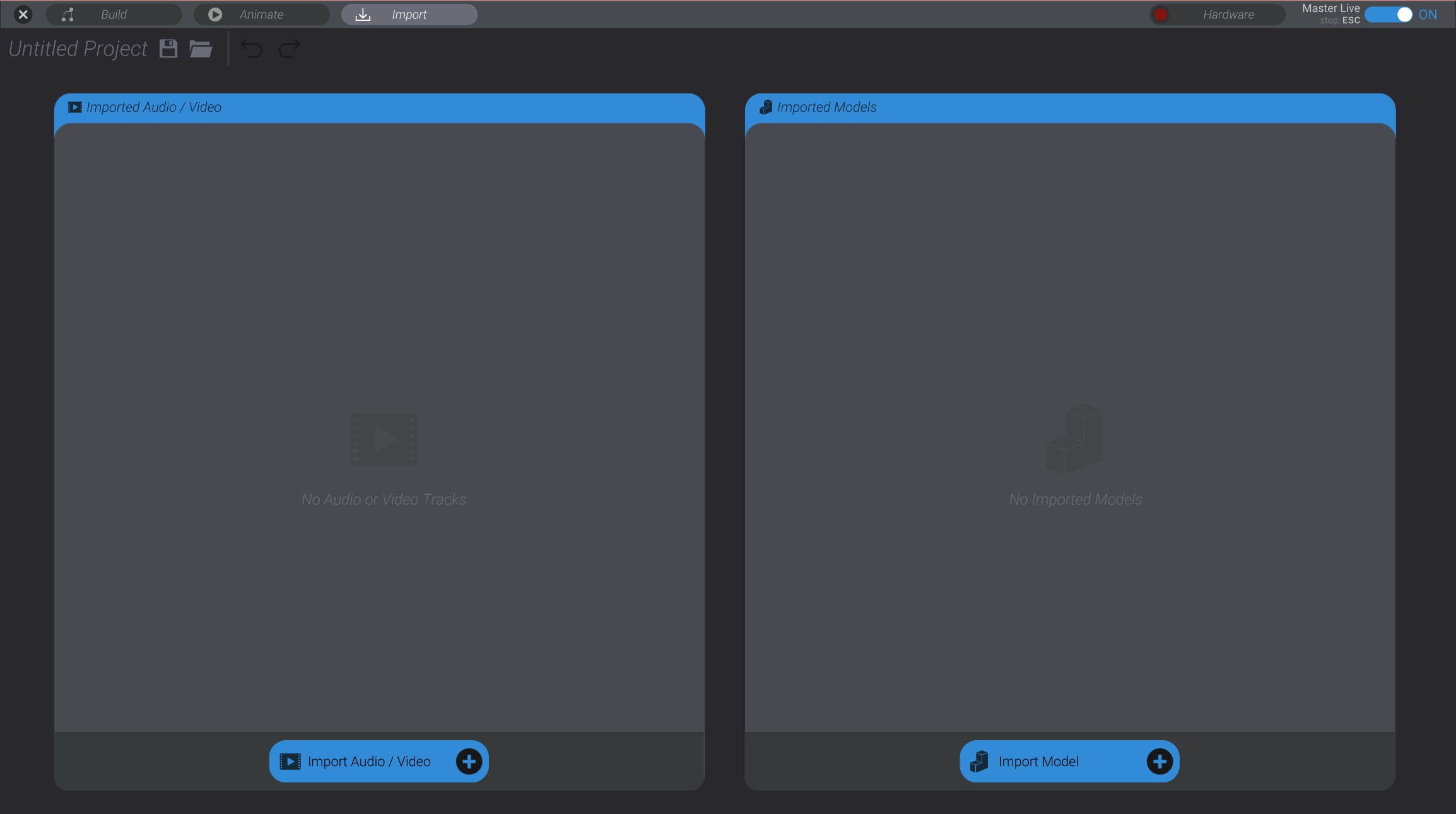
Click “Import Audio/Video” to begin importing a new audio or video track.
Select the audio or video file you want to import.
The audio/video file will be imported into the project and listed.
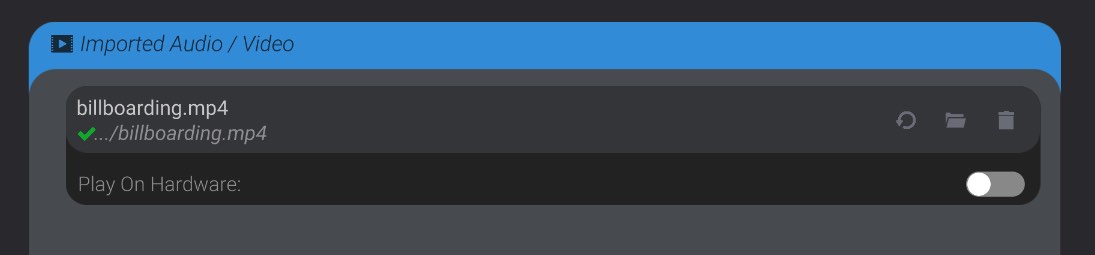
Imported files (audio, video, and 3D models) are saved to the project by either an absolute path or a local path. If a save file exists for the project, and the file is in the same directory or a child directory of the path for the project save file, the imported file will have a relative path. That means you could, for example, share a folder with a Bottango project file and an audio file, and open the project on another computer while maintaining the imported audio file.
If no save file exists for the open project, or the selected imported file is not in the same or a child directory as the project save file, the absolute path to the file will be used instead.
You can import as many audio tracks as you want in Bottango.
If you change an audio file, it does not automatically reflect the change in Bottango. Bottango loads the audio file into memory on project load or first import, and keeps it unchanged there. However, if you make a change to the audio file on disk, you can press the reload icon to reload it and reflect the changes.

Because the audio content is not copied into your project save file, if you move or delete the audio file on your computer, Bottango will not be able to re-import the media when you load the file.
When you open a project, if any audio/video tracks cannot be located at the saved path, an “X” is shown in the media list next to the path.
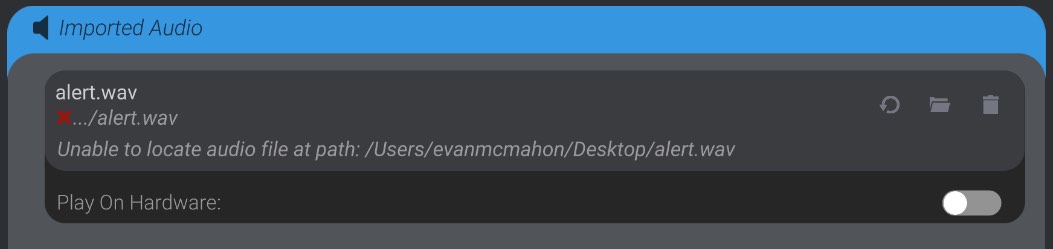
You can also do the same thing to change to a different audio/video track or set a new path for an audio/video track. If you want to use a different audio/video file for the track, you can change it by clicking the folder icon and selecting a new file path.
Finally, you can delete an audio/video track using the trash icon. However, be aware that any animation tracks that use this audio track will be deleted as well.
You’ll find details in Media Tracks for instructions on how to add audio/video to an animation. However, the big picture idea is that you’ll add new tracks to a given animation, and have those tracks be directed at either an imported audio or video file. Each keyframe you make in the animation restarts the given audio or video track. For video files, in order to see the video, you will need a video player part in the project.
But before you can add audio or video to an animation, you’ll need to have imported it into your project in this view.