
Advanced Topic Skip if you’re new, explore when you’re ready.
After creating and animating an animation track, you may want to keep that track, but have it target a different part. Maybe you imported a new version of your 3D model. Or maybe you changed the setup of your robot and want to animate a motor directly instead of a joint.
With a single animation track selected, you can press the “retarget” button.

This will prompt you to select a part that doesn’t already have an animation track in this animation. When you select it, the animation track will now animate that part instead.
After you delete a part, any animation tracks for that part will remain in the animation. They will instead be shown in a missing part state, with the name of the last associated part.

You can retarget that track just like one that has a part, and select a new part to replace the missing part.
In some cases, an animation track may be shown in an “obscured” state. Obscured tracks are ignored when playing back an animation and are locked and can’t be edited.
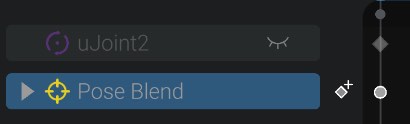
This happens when you create an animation track for a part, and then create a second animation track that takes priority of controlling that same part. As an example, you animate a joint, and then you animate a Pose Blend that also controls that joint. In that case, the initial direct animation track of the joint is obscured by the track for the Pose Blend. If you remove the Pose Blend track, the joint track will no longer be obscured and you can animate it again.
In the above example, the track uJoint2 is obscured by the track Pose Blend, as the Pose Blend track animates the uJoint2 part as well.