
Essential Topic for learning Bottango.
Animations have a duration. The default animation length in Bottango is 10 seconds; however, an animation can be as long as 4 hours.
On the top of the animation window, you’ll see the timeline of the animation, from start to finish, expressed in the horizontal axis.

Time is expressed in the following format: Minutes : Seconds : Frames. So, for example, if you see on the animation window a time of “2s : 15f,” that means 2 seconds and 15 frames. Or “3s : 00f” means 3 seconds and zero frames.
Animations in Bottango are authored at 30 frames per second. That means if you add 1 frame to “2s : 29f” (2 seconds and 29 frames) you’d end up with “3s : 00f” (3 seconds and zero frames.)
In the animation window, there is a blue scrubber.
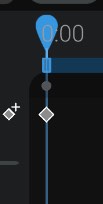
The scrubber shows the currently selected time in the animation. Click and drag anywhere on the timeline to select a different time. When you do so, the scrubber will move to the clicked-on time.

You’ll also see that there’s a text version of the selected time:

You can refer to this text to see what the current selected time in the animation is. You can also enter a time manually to select, in the same Minutes : Seconds : Frames format. Again, for example, if you wanted to move the selected time to 3 seconds and 11 frames, you would enter 3:11.
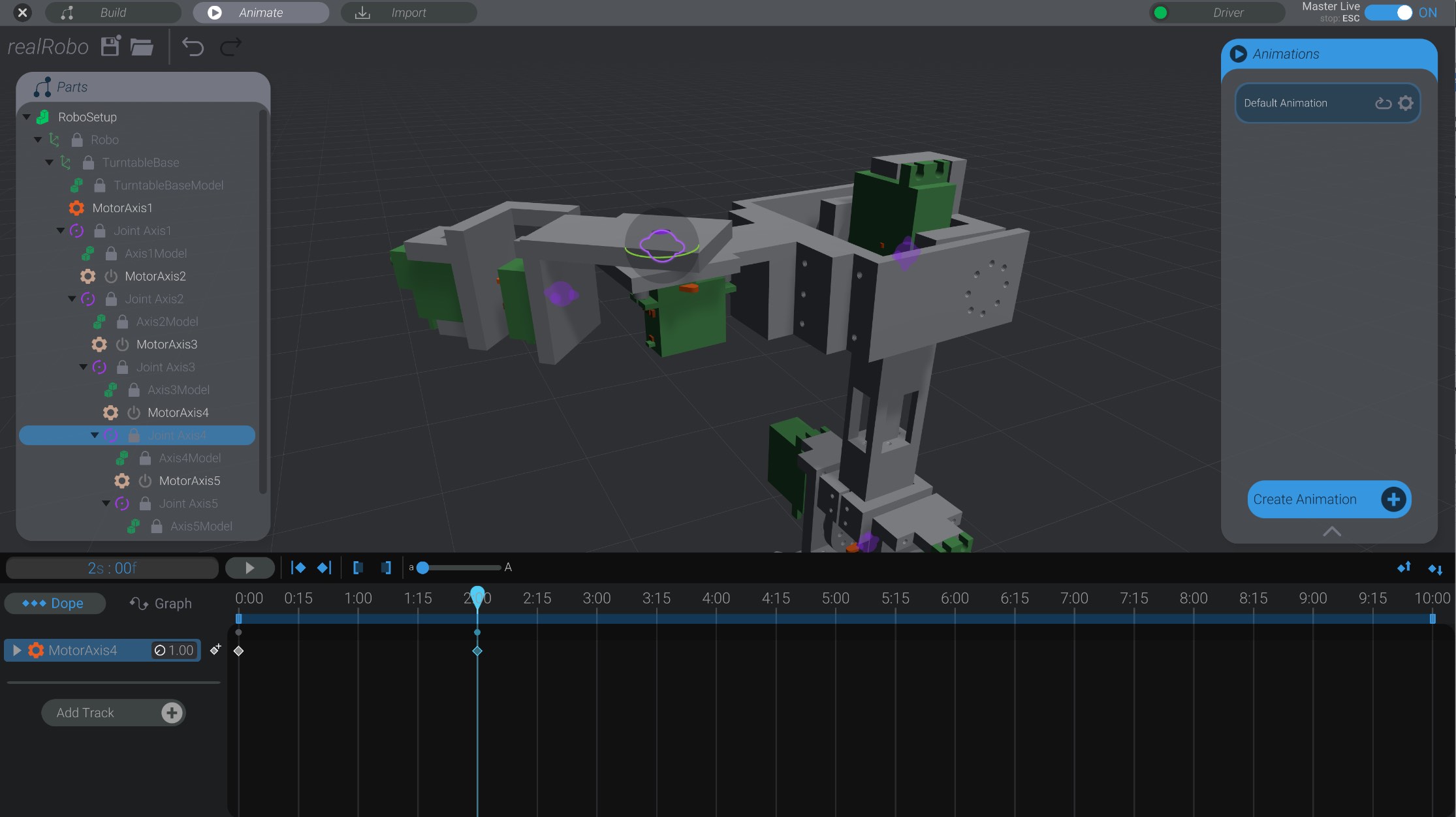
Click on the timeline to select a time in the animation where you don’t already have a keyframe. Then move or rotate the same joint you did previously. Because a track already exists for that motor, a new track is not created. However, a new keyframe is added to that animation track. Now there are two poses of that motor at two different times in your animation.
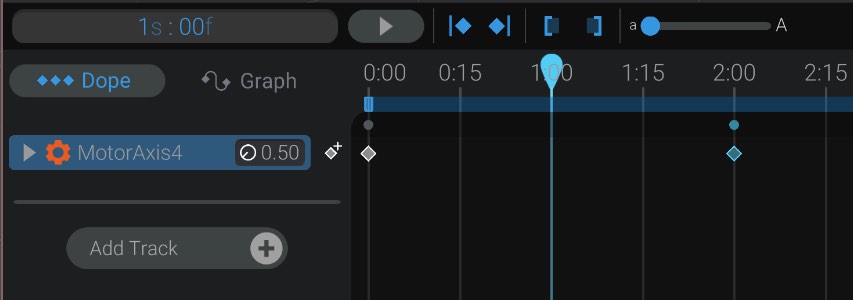
Drag on the timeline again now that there are two frames, and you’ll see that the motor is interpolated between the value of the two keyframes. In this example there’s one keyframe at movement  0.0 at time 0:00, and a second keyframe at movement 1.0 at time 2:00. The selected time is 1:00 (halfway between the keyframes’ time), and the motor has been moved to movement 0.5 (halfway between the keyframes’ values).
If you want to capture a keyframe at the selected time, you can press the manual Add Keyframe button as well.

This will insert a keyframe with the current motor value at the selected time.
If you want to see the end result rotation or movement of a joint, you can expand an animation track to see all the associated joints of that motor, and the derived value.
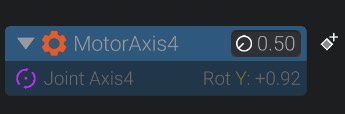
As you move the selected time, you will notice that the motors in the animation move to the indicated values. The act of moving the selected time by dragging is called “Scrubbing.”
When you first start scrubbing the timeline, you will notice that the robot transitions over time to where you first clicked down on the timeline. This is so that the robot does not immediately jump to the indicated time and possibly damage your hardware.
However, once the transition to the selected time is complete, if you keep your mouse down and continue scrubbing, the transition delay is eliminated. As long as your mouse is down, the robot will immediately move its motors to the value as indicated by the selected time.
If all of your hardware drivers are currently disconnected, Bottango will scrub instantly and skip the transition, since you are editing your animation “offline.”