
Beginner Topic used frequently in Bottango workflows.
It’s likely you will want to play audio in your animations. In order to add media into your project you need to first import it in the Import view in Importing Audio and Video. Any animation clip can have as many audio tracks as you’d like.
Click the “Add Track” button to select the kind of track you’d like to add.
Click on the audio/video track option, and then select an imported audio track to add to the animation. Remember that it needs to be imported into the project before it will show up in the list.
A track and a keyframe for the audio will be created.

Audio tracks show the waveform of the audio to help you visually synchronize your motor keyframes with the sound of the audio. As you scrub time in your animation, the audio will play back as well. You can expand the audio track to see a larger version of the waveform.
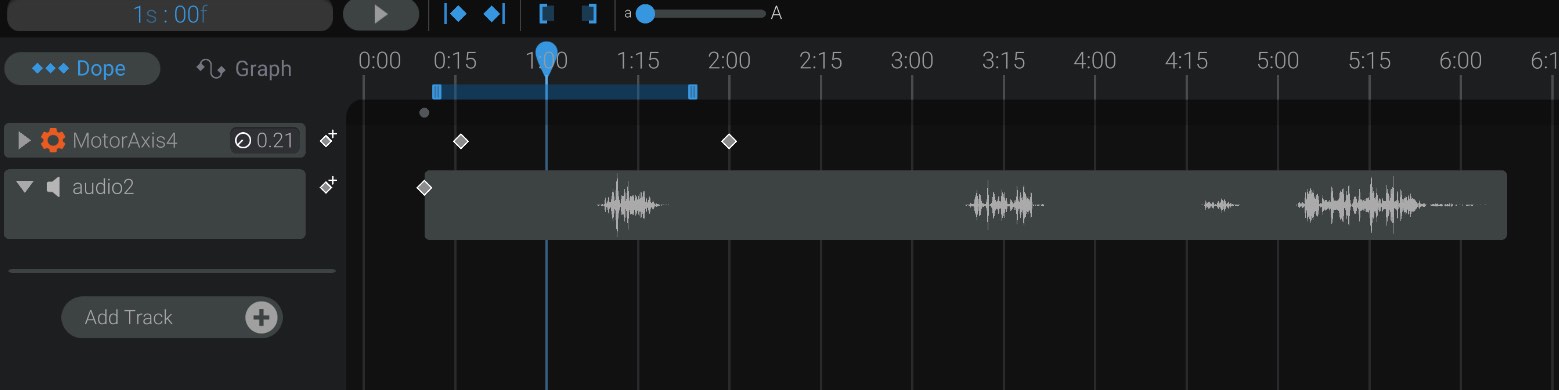
Each keyframe in the audio track restarts playback of that audio clip. Click the add keyframe button to play the audio again (or restart it) in the same track.
Audio will play back not just when scrubbing, but when playing the animation as well.
You can click the speaker icon in the list of tracks to mute and unmute the audio track.
You add video to your animation in the same way as audio in the previous section. However, in order to see video, you need a video player in the project. See Importing Audio and Video for information on imported media and video tracks. If you don’t already have a video player in the project when you add a video track, Bottango will ask you if you’d like to create one automatically.
Video tracks behave the same as audio tracks as well. You will see the length of each keyframe, and each keyframe restarts the video. You can mute the video in the same way you mute an audio track.
Note, however, that video tracks do not play an audio preview as you scrub, nor do they show the waveform of the audio. This is a limitation we hope to improve in the future!
There are some options, of varying technical difficulty, to allow you to play audio on your hardware instead of through the computer only. Be aware that all options will require additional hardware beyond the microcontroller you have running the Bottango firmware. See Audio on Hardware for more details.